 EN
ENA More Complete View of Your Business in Shopify Analytics
Shopify Analytics already brings together the core commerce signals that show how your business is performing, from orders and sessions to the results of marketing you run with Shopify. But every business has context that goes beyond those signals: product attributes unique to your catalogue, activity from the apps you use, moments only your team would recognize, and the places where demand takes shape.
With Fall '26 Edition, Shopify Analytics brings even more of your business into view. Four updates add app data, team knowledge, business-specific dimensions, and geographic context to the commerce data already in Shopify, giving you a more complete view of what’s happening across your business and why.
Throughout this post, we’ll look at how an apparel brand uses these updates to understand its latest outerwear campaign and decide where to invest next.
App Events bring participating app data into Analytics
A growing share of your customer journey happens through apps. Understanding that activity can mean opening separate tools and dashboards. App Events lets participating apps make their event data available directly in Shopify Analytics.
For app developers, integration starts by declaring the Shopify standard events their app supports in its extension configuration, then sending those events through the App Events API. Shopify validates and processes the data so it becomes available to merchants through the app_events dataset in ShopifyQL.
On the merchant side, you can use ShopifyQL to query those events, visualize them over time, and group or filter them by app and event dimensions. That gives you one place in Shopify to understand app activity alongside the other signals that shape your business.
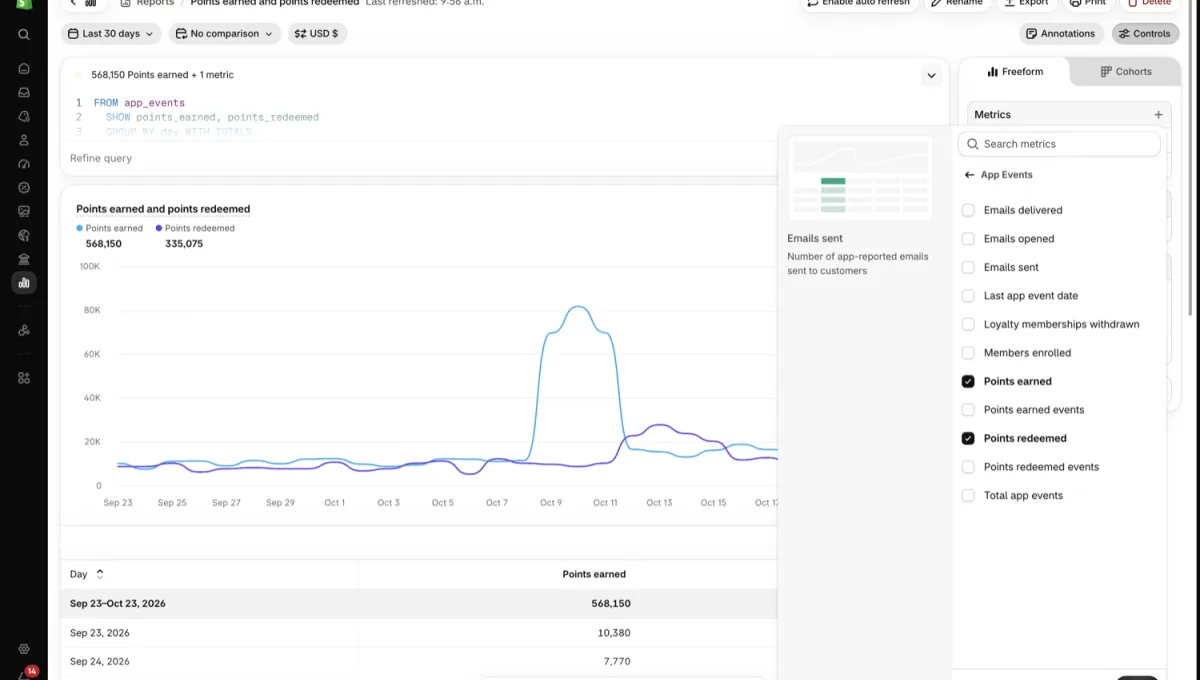
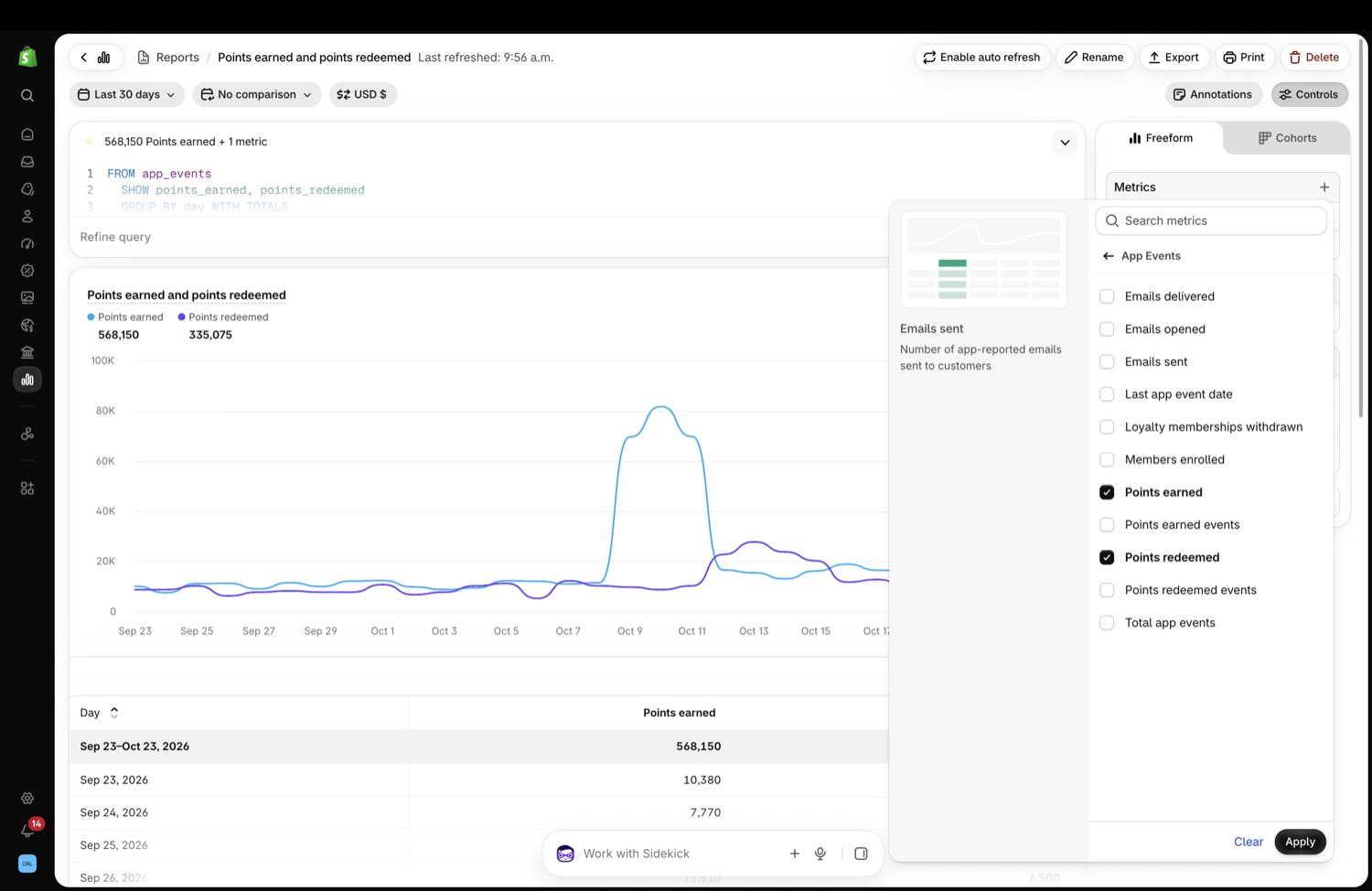
For its outerwear campaign, the team uses a participating loyalty app. In Shopify Analytics, the team compares points earned and redeemed over time to understand how the campaign influenced loyalty activity and whether customers returned to use their rewards.
Annotations keep business context on the chart
A chart can show that sales rose on Tuesday. Your team may know that a creator posted that morning, a pop-up event occurred, or a supplier delay ended. Months later, that explanation is harder to recover.
You can create, edit, delete, search, and filter your own annotations on time-series reports. Shopify also adds annotations for events such as app installations, products published, and measurement changes, bringing business and platform context together in one view. Instead of getting lost in memory, spreadsheets, or Slack, the context stays attached to the point in time your team may investigate later.
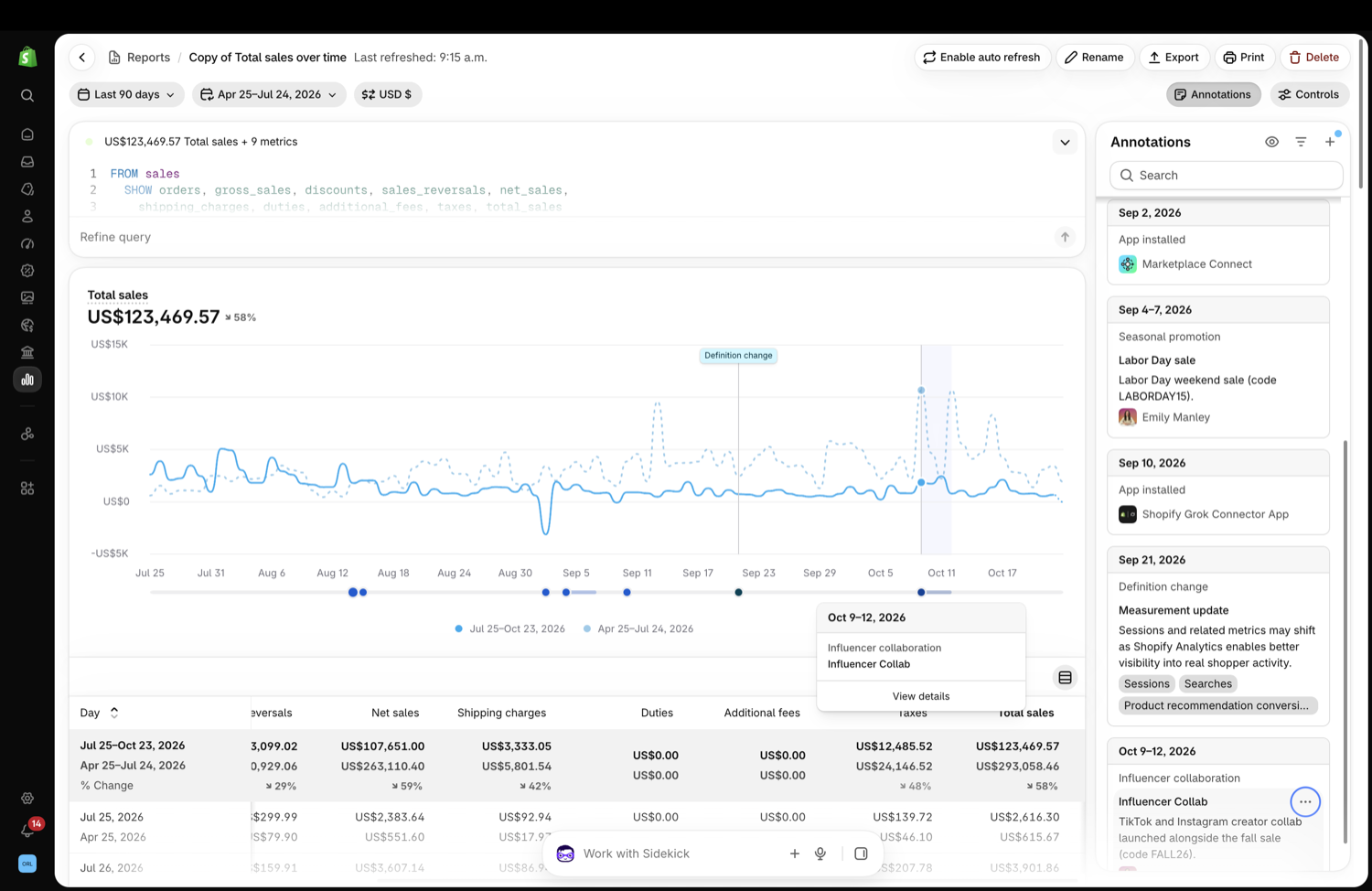
The team adds an annotation for an influencer collaboration that ran from October 9–12. By marking the collaboration directly on the total sales chart, the team can see how it aligns with an increase in sales and better understand its impact.
Category metafields and metaobjects make reports more personal
Once the team understands the events surrounding its campaign, it can turn to what customers purchased.
Every business has its own way of describing products, customers, and orders. A standard product title may not capture the colour, material, designer, warranty, loyalty tier, or other attributes that matter to the question you’re asking.
You can now group and filter Analytics reports using category metafields such as colour, material, and pattern, along with metaobjects such as designer, warranty, or loyalty tier. These fields appear as readable dimensions and filters in Shopify Analytics and ShopifyQL, without requiring an export or manual join.
Category metafields already assigned to products appear automatically. To use metaobjects in Analytics, reference them through a metafield on a product, variant, order, or customer, then opt that metafield into analytics.
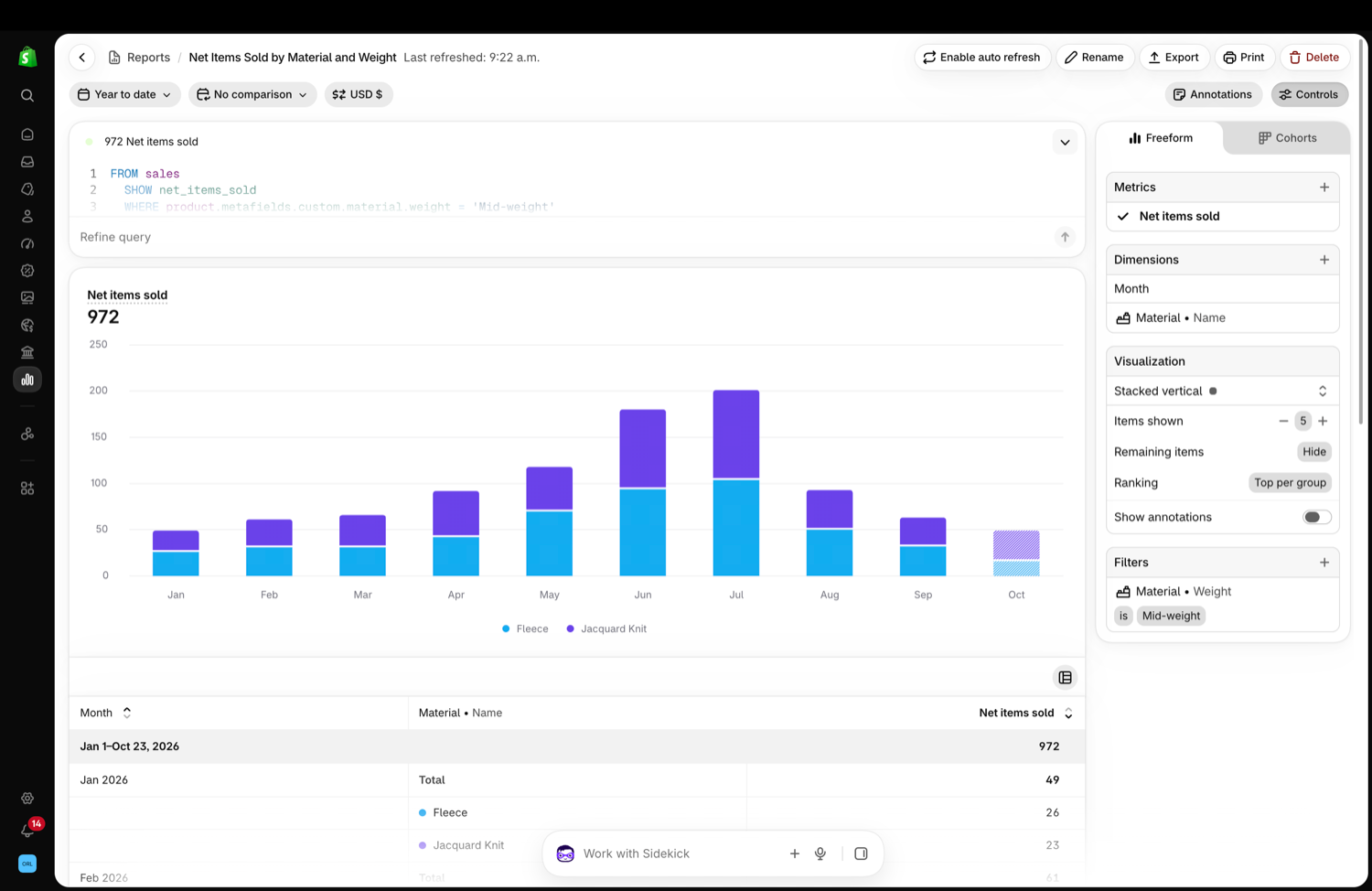
For the apparel brand, the team groups net items sold by Material Name to compare products made from Fleece and Jacquard Knit over time. It can then refine the report using another attribute of the referenced material, such as weight, to identify the product characteristics driving demand and inform future merchandising decisions.
Interactive maps show where demand is concentrated
Finally, the team looks beyond what customers bought to understand where that demand was concentrated.
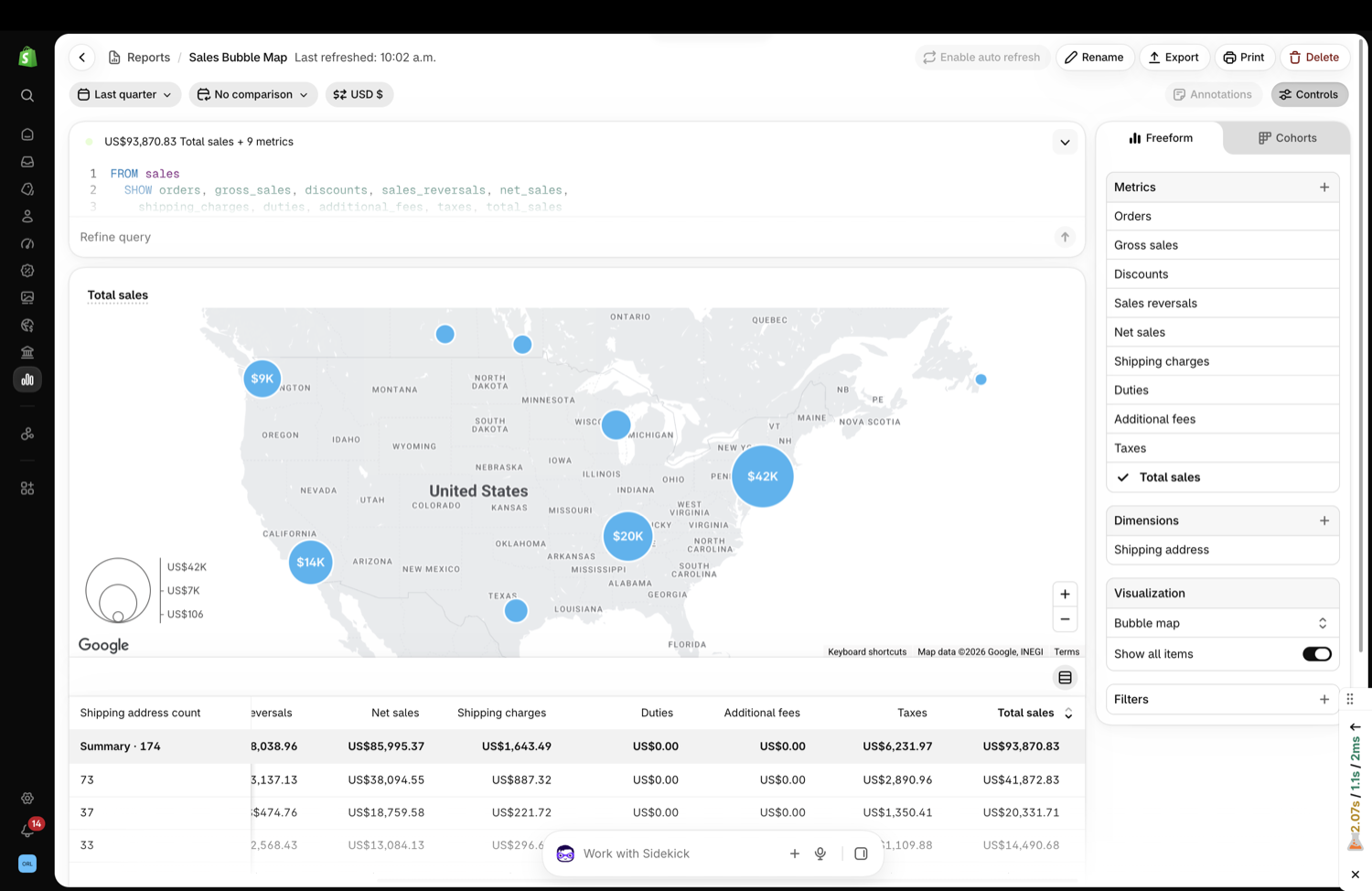
A table can tell you how much you sold in a city or region. It can’t always show whether those sales are spread across the market or concentrated around a few nearby areas. Bubble maps plot metrics from your sales data—such as net sales, gross sales, orders, average order value, or gross profit—on an interactive map so geographic patterns are immediately visible.
Nearby shipping or billing addresses are grouped into proximity-based clusters, and each bubble is sized according to the sales metric you select. As you zoom or pan, the map and its supporting table refresh with more localized clusters. You can move from a market-level view to the areas where your selected metric is strongest without rebuilding the report.
The team maps total sales by shipping address for the last quarter. Its largest concentration appears in the eastern United States, representing approximately $42,000 in sales, followed by clusters in the Southeast and Southern California. This view helps the team quickly identify its strongest markets and decide where to focus its next regional campaign.
Together, these signals give the team a more complete picture of its campaign: how customers engaged, which events may have influenced performance, which materials drove purchases, and where demand was concentrated. With that context in Shopify Analytics, the brand can make more informed decisions about which products and markets to promote next.
Source: Original website ·Read original
Related Learning

How To Customize a Shopify Store Theme (2026)
Shopify’s built-in theme editor lets you update content, layout, typography, and colors, and preview…
More Safe Browsing Help for Webmasters
Wednesday, September 07, 2016 Crossposted from the Google Security Blog. For more than nine years, S…

What Is Shopify and How Does It Work? (2026)
Every day, millions of people use Shopify to power their businesses. From online side hustles to glo…