 EN
ENHow To Customize a Shopify Store Theme (2026)
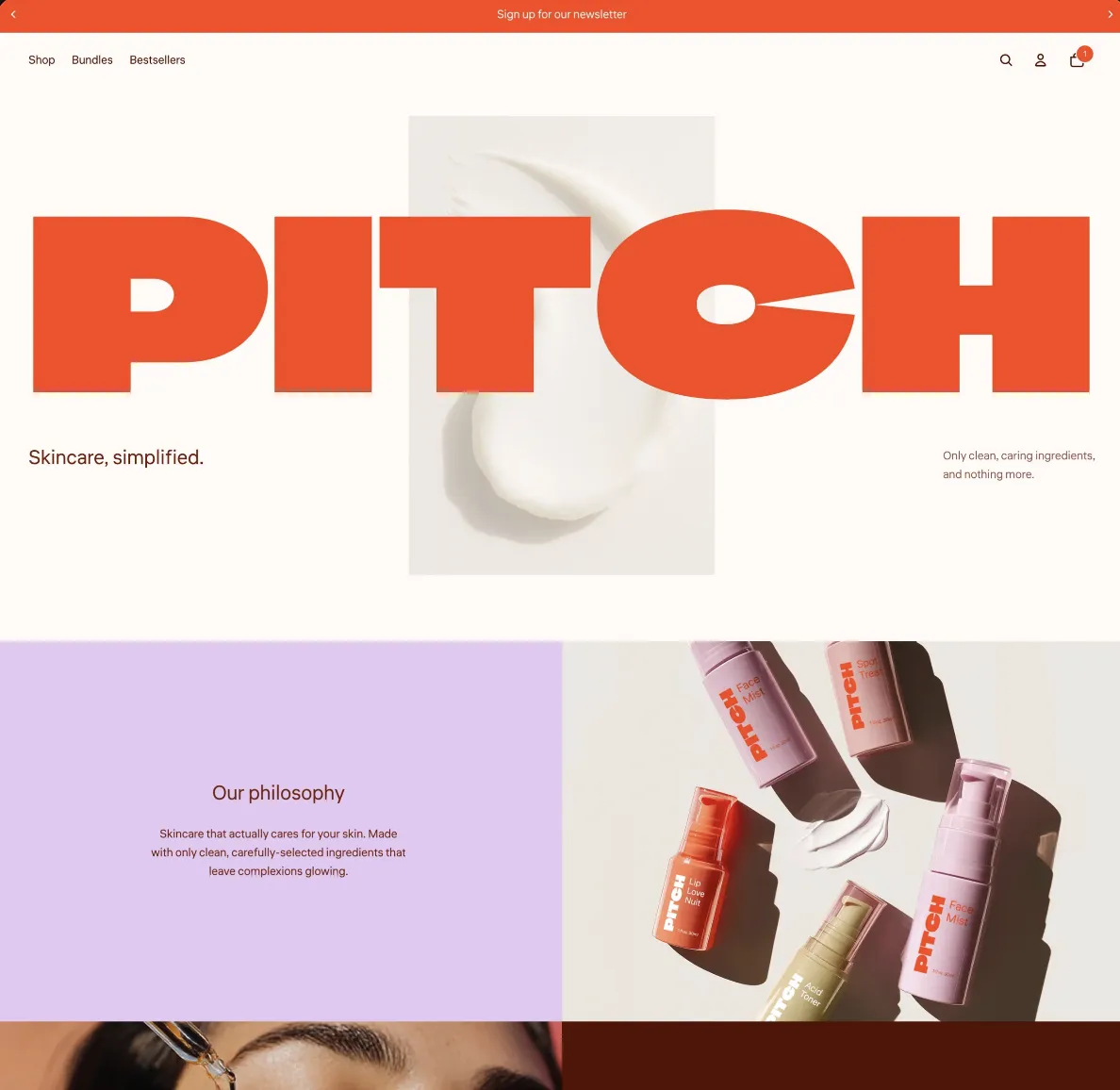
Shopify’s built-in theme editor lets you update content, layout, typography, and colors, and preview changes before publishing, so your storefront looks intentional from the first click.
Customizing a Shopify theme is the difference between creating a store and creating your store. Shopify’s Horizon theme foundation, launched in May 2025, lets you build from reusable theme blocks you can nest into custom layouts. Eligible stores can even generate new blocks from a text prompt with Shopify AI Store Builder.
In this guide, you’ll learn how to customize a Shopify theme and give your store a unique visual identity.
What is Shopify customization?
Shopify customization means changing your store’s design and features to suit your brand. A Shopify theme provides the basic layout. Website customization covers the choices you make after installing it.
You can customize your Shopify website with the theme editor by changing colors, fonts, content, and page sections. For changes, you can use apps, Liquid code, or a custom storefront.
UI and UX are different parts of Shopify customization:
- UI includes visual elements such as colors and buttons
- User experience covers how customers find products and complete checkout
Designing your site with UI and UX best practices can prevent problems: Baymard’s 2025 checkout benchmark found that 64% of desktop ecommerce sites had “mediocre” or worse checkout UX, which increases the risk of abandoned carts.
Types of Shopify customizations
You can apply different levels of Shopify customization, depending on your website goals and technical abilities. Some store owners only want to tweak colors and integrate a few apps, while others may wish to code something new.
Here’s what you can do:
- Quick theme tweaks. These UI design changes include fonts, logos, and banners. Theme settings can also control stock labels and promotional badges.
- Block-based layout changes. Modern Shopify themes are modular, built from “blocks” you can drag and drop anywhere on the page. You can stack image galleries and reviews in the order you wish, hide or reveal blocks, and shape each page’s design without code.
- AI-assisted customization. Generate design blocks instantly with a text prompt. For instance, type “add a countdown timer under the product gallery,” and Shopify will create it instantly.
- Advanced customization. For more control, a Shopify developer can extend a store’s existing functionality with custom Liquid code and scripts, APIs, and metafields to build bespoke layouts and features.
Shopify customization: hire a developer or do it yourself?
A Shopify theme provides the basic website design and page structure. Use the theme editor for common visual changes. Hire a developer when the project requires custom code, integrations, or features the theme doesn’t offer.
Hire a Shopify developer
Hire a developer when you need new theme sections, custom functionality, or extensive layout changes. Theme customization services can cover design, development, and testing.
Find providers specializing in theme customization through the Shopify Partner Directory. You can filter them by location, price range, and partner tier.
Customize your Shopify theme yourself
DIY ecommerce store design works when the changes you want are available in the theme’s settings. The theme editor lets you edit content and visual settings, then preview your changes. You only need code when the theme’s settings don’t have the option you want.
Compatible themes also support page templates, app blocks, and app embeds. The Basic plan or higher includes an online store and access to Shopify’s built-in theme editor.
Find the perfect fit
Transform your store’s appearance with fast, flexible themes designed for your business. Add checkout options, branding, navigation menus, product recommendations, reviews, and more with hundreds of themes to choose from.
Discover themes5 ways to customize your Shopify store to make it your own
- Find the perfect theme in the Shopify Theme Store
- Edit your theme settings to adjust the look of your store
- Create templates
- Customize your store with Shopify apps
- Use Shopify app embeds to add more sections
Use any or all of these five methods to customize your Shopify website with Shopify’s built-in tools:
Find the perfect theme in the Shopify Theme Store
Shopify provides a default theme when you open an account. You can replace it with a free or paid option from the Shopify Theme Store. Compare each theme’s features with your store’s needs before adding it.
There are two main types of Shopify themes:
- Free themes. Shopify develops and supports these themes, which you can add through the Shopify admin.
- Paid themes. Third-party theme developers create these themes, which you customize before buying. The listed price is a one-time charge, and the developer provides general support and updates.
To add a theme, go to Online Store > Themes in the Shopify admin. Select Add for a free theme or Try theme for a paid one. The theme appears under Draft themes, where you can customize and preview it. You must purchase a paid theme before you can publish it.
Shopify custom themes vs. pre-built themes
You can find pre-built themes in the Shopify Theme Store. They include theme editor settings and give you access to eligible theme updates. Pre-built themes are a good option when their existing features meet your store’s design and functional needs.
If you can’t find a pre-built theme that matches the layout and functionality you want, you can commission a custom theme designed and coded specifically for your store. Costs, development schedules, and maintenance support for custom themes vary depending on project scope and the developer agreement.
Horizon themes are pre-built options with nested theme blocks that let you control the content inside each section. The Pitch preset below, from the Horizon collection, is one example.
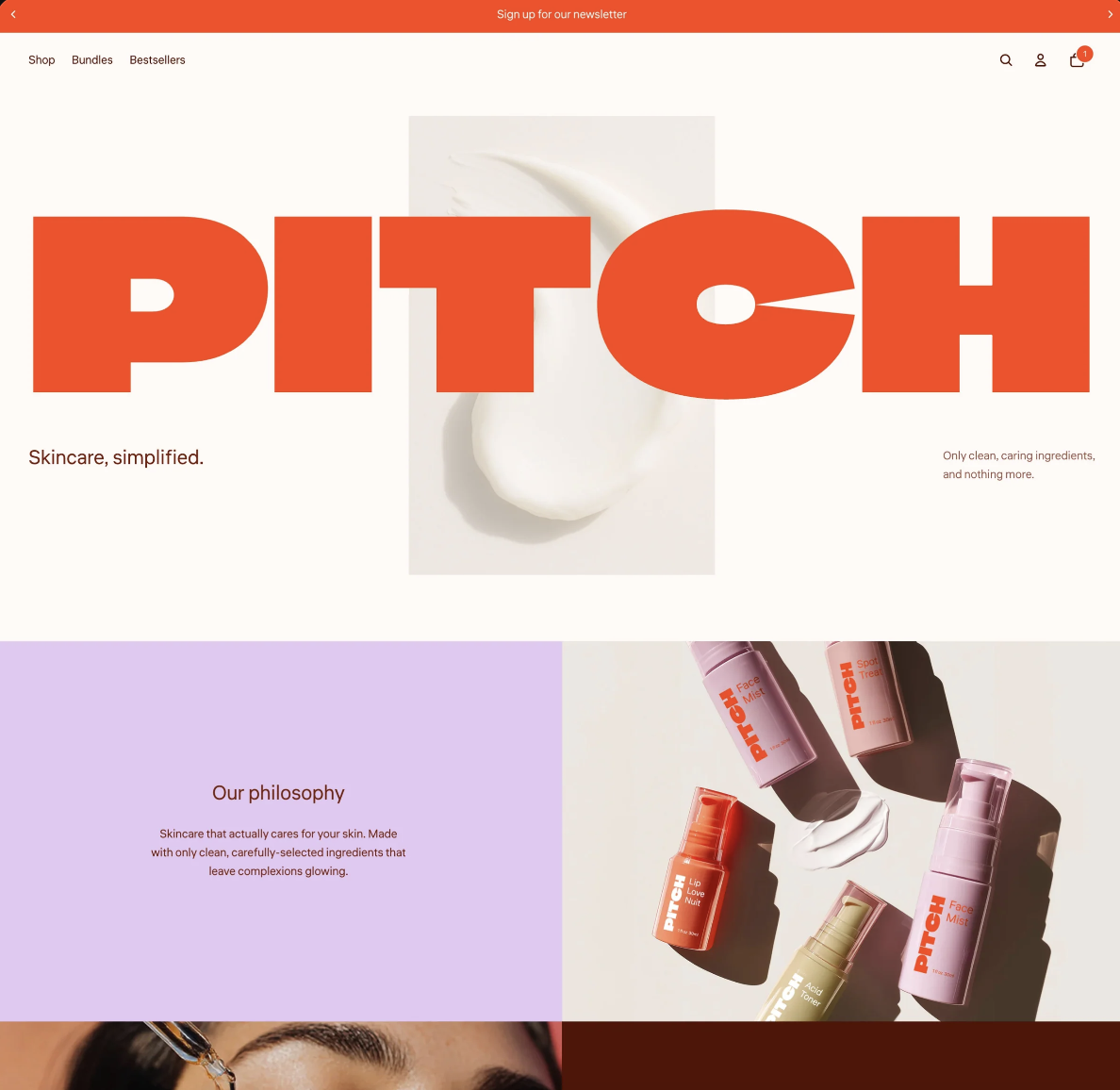
The table below shows how pre-built themes differ from custom ones:
| Factor | Pre-built theme | Custom theme |
|---|---|---|
| Cost | Free or one-time price | Developer-quoted price |
| Setup | Install and configure | Design and build |
| Flexibility | Bound by theme settings and code | Built to your requirements |
| Maintenance | Free updates through the Theme Store | Updates managed by your development team |
| Performance | Must meet Theme Store performance requirements | Depends on implementation |
| Support | Shopify or the theme’s developer | Your developer or agency |
Edit your theme settings to adjust the look of your store
Theme design covers your content, layout, typography, and color settings. In the Shopify admin, go to Online Store > Themes and select Edit theme. Use the controls there to apply your visual branding across the store.
Color palette
Use your brand guidelines to set colors for backgrounds, text, buttons, and links. If you don’t have guidelines, pull the primary and secondary colors from your logo. Save the hexadecimal values so the same shades appear throughout the store.
Fonts
Apply UI design principles by choosing one or two typefaces that fit your brand and stay readable at small sizes.
Mix weights within a font family, or pair a serif with a sans serif to create contrast between headings and body text. Set consistent sizes for each text level so shoppers can scan the page.
Create templates
A template sets the layout for one page type. Edit it once, and every page assigned to that template updates, too. But pages aren’t locked into sharing templates: for example, you can apply a separate template to a landing page in a sales funnel, for instance, to keep it distinct from your standard content pages.
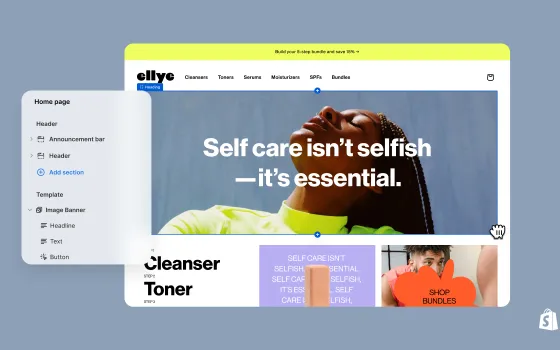
Use sections and blocks to build everything inside a template. A section is a content area, such as an image banner, and blocks are the individual elements inside that section, like text or buttons.
To create a template, open the theme editor and use the page selector at the top to choose a page type. Click Create template, name it, and then choose an existing template as its base. Add or arrange sections and blocks, then click Save.
Customize your store with Shopify apps
Browse the Shopify App Store to find additional features that aren’t included in your theme. Search the store design category for the features you want, then review the app’s pricing and theme compatibility.
Here are five common ways to use Shopify apps:
- Customize storefront search. With apps like Shopify Search & Discovery, you can add search filters, synonym groups, and product boosts.
- Add product recommendations. Use product recommendation apps to display related or complementary products on product pages to increase average order value.
- Display customer reviews. Add apps such as Okendo and Judge.me to collect and display product reviews.
- Customize checkout. Stores on Basic plans or higher can add compatible apps to post-purchase, thank you, and order-status pages. If you’re on Shopify Plus, you can also add app blocks. Check here to see which checkout apps are available by plan.
Use Shopify app embeds to add app features
App embeds let an app add a site-wide feature—a visible chat bubble that floats over your storefront, or analytics that run in the background, tracking visitors—without needing a spot in your page layout.
Since app embeds don’t need to be placed in a particular section or layout, they’re distinct from app blocks, which you place in a specific section. Embeds work with any theme version, and you turn them on with one toggle in the theme editor.
To activate an app embed, go to Online Store > Themes > Edit theme, then open App embeds. Select an installed app, switch on its embed, adjust the settings, and click Save. If you publish another theme, you’ll need to activate the app embed in that theme, too.
How to use the Shopify theme editor
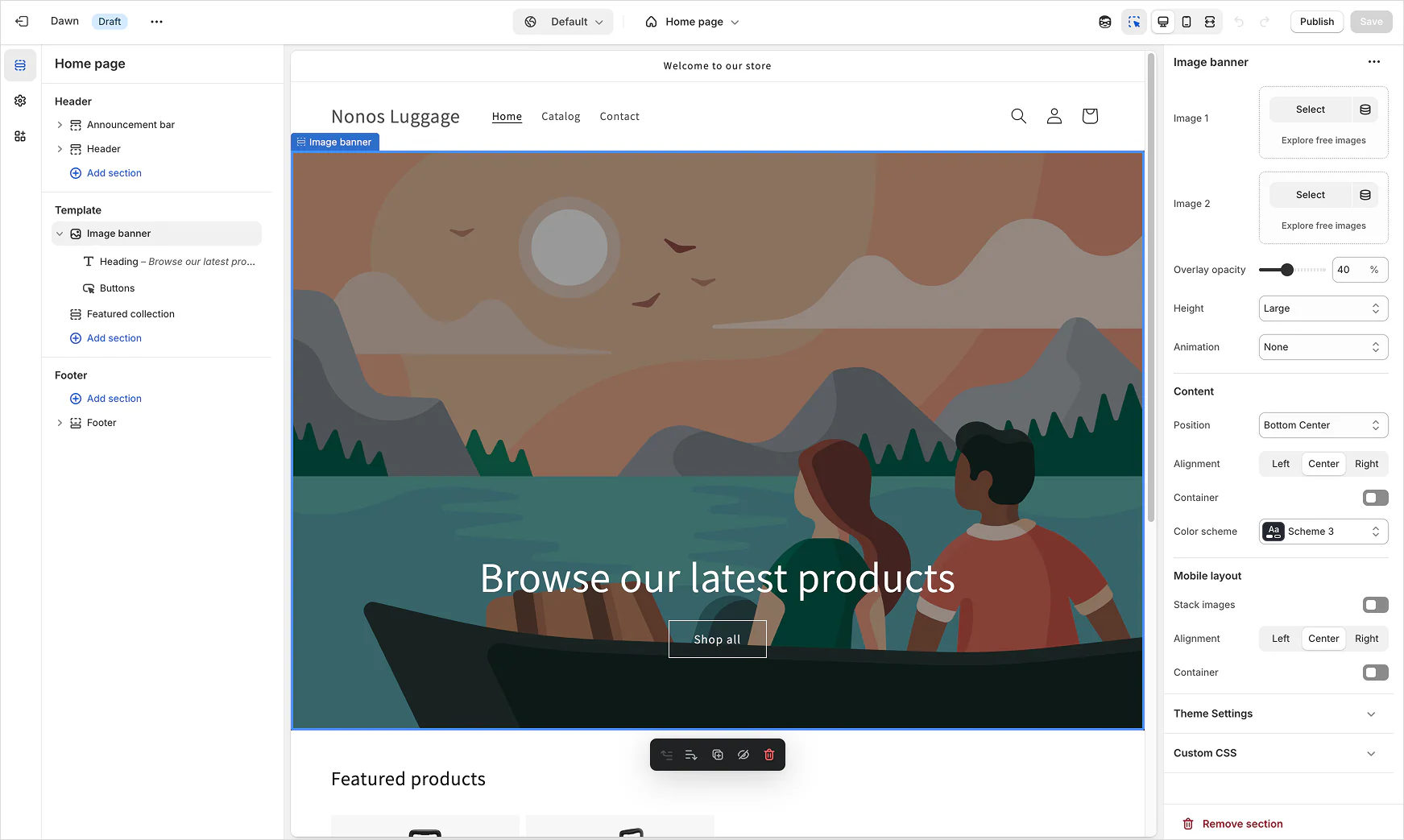
The Shopify theme editor is your main design workspace. It lets you adjust your store’s look and layout without touching code. Here are some tips for getting the most out of it:
- Lean on prebuilt themes or presets. Pick an option that suits your brand, then adjust its colors, fonts, and images.
- Build the homepage first. Add the hero banner, featured products, and primary call to action before editing supporting pages.
- Preview the mobile layout. Check image crops, text size, and buttons before saving.
- Duplicate the theme. From Online Store > Themes, open the actions menu and select Duplicate to keep a backup copy before testing edits.
- Check file limits. Compressed theme packages have a 50 megabyte limit, and uploaded images have 20 megabyte and 20 megapixel limits.
Accessing the theme editor
To access the editor:
- Log in to your Shopify admin.
- Go to Online Store > Themes.
- Under your current theme, click Customize.
Here you’ll see a live preview of your storefront on the right and a sidebar of editable sections on the left.
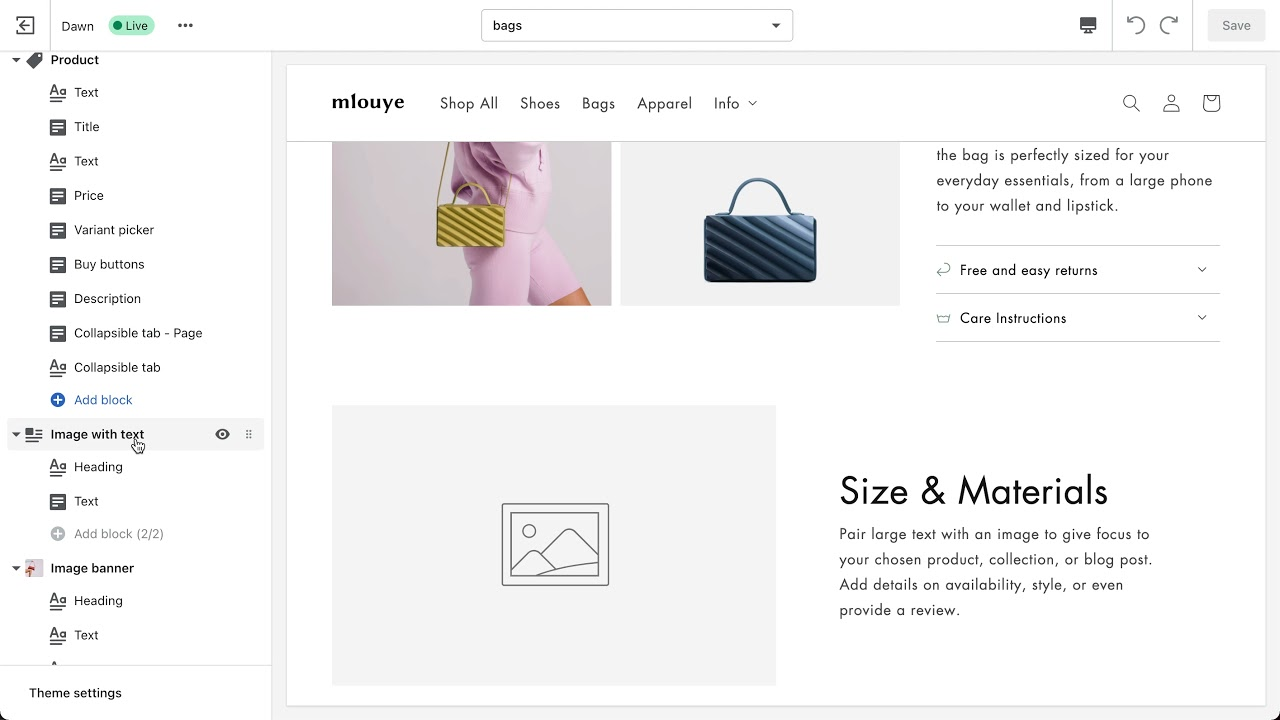
Key editor features and tools
Once you’re in the Shopify theme editor, you’ll be able to:
- Manage sections and blocks (sidebar). Shopify themes are built in modular sections. Add, remove, reorder, or hide sections, and edit individual blocks (like buttons, images, or headings).
- Determine theme settings. Control global styles, like your fonts, colors, favicon, checkout branding, and social links. Changing something here updates it everywhere. Some themes, including Horizon, come with multiple pre-designed “looks” (color palettes, font combinations, layouts) you can switch between for a quick starting point.
- Preview on different device settings. Toggle between desktop, tablet, and mobile views to make sure your design works across all screen sizes.
- Add app embeds. Many apps can plug directly into the editor so you can drop features like reviews, chat widgets, or badges right into your theme.
- Load dynamic sources. Pull in product details, metafields, or other dynamic data directly into your blocks. For example, you could show shipping info or add promotional messages tied to a metafield.
- Use the language editor. Customize the default text strings that appear throughout your theme (e.g., Add to cart > Buy now).
- Adjust accessibility and SEO settings (in some themes). Add alt text, headings, and other optimizations to improve both usability and search visibility.
Advanced Shopify customization and custom theme development
Custom Shopify theme development lets brands control how their store looks and works with specialized layouts, storefront features, and integrations.
Store owners have two options: start with a ready-made website template and adjust it, or build a theme from scratch. Behind the scenes, themes run on a few coding languages—two of them (Liquid and JSON) handle content and settings, and two others (CSS and JavaScript) handle how everything looks and behaves.
Shopify’s developer documentation has separate guides for building themes, developing apps, and creating headless storefronts (the part that customers see, while Shopify’s back end handles the commerce infrastructure behind it).
Introduction to Liquid templating
Liquid is Shopify’s open-source templating language and the foundation of every Shopify theme. It lets developers create dynamic pages by pulling in content from the Shopify back end (e.g., products, collections, customer data) and rendering it in the front-end template.
Developers use Liquid to:
- Show product and collection details
- Add conditional logic (e.g., “if this, then that”)
- Reuse the same chunk of code in multiple spots
- Build custom layouts and features
Here’s a simple example: this code checks whether a product is in stock and shows shoppers the right message.
{% if product.available %}
<p>In stock</p>
{% else %}
<p>Sold out</p>
{% endif %}
In July 2026, Shopify previewed two new developer tools: one for building reusable content blocks, and one for page sections that can update on their own without reloading the whole page. Existing themes keep working exactly as they do now; these are additions, not replacements.
Using metafields for custom data
Metafields let you store and display custom data that doesn’t fit into Shopify’s standard product fields. For a clothing brand, they could include details such as fabric, care instructions, and size charts. Metafields extend your store’s functionality without altering the theme.
To add a metafield:
- Create a definition with a namespace, key, and data type
- Add a value to the relevant Shopify resource
- Connect it as a dynamic source or reference it in Liquid
If a theme supports dynamic sources, most metafields can be added through the theme editor; no coding required. For more custom needs, a developer can pull the value in directly with Liquid. This example pulls a product’s material metafield and displays it, showing nothing if the field is empty:
{% assign material = product.metafields.details.material.value %}
{% if material != blank %}
<p>Material: {{ material | escape }}</p>
{% endif %}
Customize specific Shopify pages (product, checkout, and more)
You can customize different Shopify pages in different editors:
- Theme editor. Use this to edit Storefront pages.
- Checkout and accounts editor. Use this to adjust checkout and customer account pages.
- Shopify admin. Use this to adjust editorial content like product descriptions, collection descriptions, blog posts, and page copy.
Product and collection pages
Go to Online Store > Themes > Edit theme, then select Products or Collections from the page selector. Product templates control the layout, including how product media, purchase info, and recommendations are arranged. Collection templates control layout elements like the collection banner and product grid.
The actual content, such as titles, descriptions, prices, and images, lives in the product or collection record in the Shopify admin, not in the template.
If a group of products needs its own layout, create an alternate template and assign it to just those products. One thing to know: Because that template is shared, any layout change you make to it later applies to every product assigned to it, all at once.
Cart, blog, and content pages
You can also use the theme editor to adjust cart, search, blog, and standard page layouts.
Use the cart template to control the item list and subtotal sections. Cart-drawer controls vary by theme and commonly appear in the theme settings or header section.
Page and blog copy lives in its record in the Shopify admin so that you can edit it there. The theme editor controls how that content appears on the storefront.
Checkout, thank you, and order-status pages
To customize checkout, thank you, and order-status pages, use the checkout and accounts editor, found under Settings > Checkout.
Any Basic or higher plan lets you apply your branding and add eligible apps to thank you and order-status pages. On Shopify Plus, you can also add app blocks to the information, shipping, and payment pages, and access the Checkout Branding API for deeper customization.
Customer account pages
You can also use the checkout and accounts editor to adjust customer account and sign-in pages, and your checkout branding will carry over automatically. If you prefer a distinct look from your checkout pages, you can override the branding, edit the account menu, and add app pages for features like returns or subscription management.
Build an online store in minutes
Shopify’s drag-and-drop editor makes it easy to create stunning, secure, and full-featured websites, no coding needed. Choose from thousands of themes and apps to help make your website one of a kind.
Learn moreRead more
- What is Shopify and How Does it Work?
- How to Build a Business Website for Beginners
- The Best Shopify Ecommerce Themes for Your Online Store
- How To Create a Coming Soon Landing Page (+Examples, 2024)
- Etsy and Shopify- How Three Makers Used Both to Grow Their Businesses
- A 14-Point Ecommerce Checklist to Launch Your Shopify Store
- 24 Free Shopify Apps to Help You Build, Manage, and Grow Your Store
- 10 Ways How to Optimize Images for the Web for SEO
- Homepage Design 101- What to Include on the Front Page of Your Website
- Brand Values- A Competitive Advantage for Your Business
Customize a store theme FAQ
Can you customize Shopify themes?
The Shopify theme editor lets you change layouts, colors, typography, sections, blocks, and content. Available settings vary by theme. Developers can edit Liquid, CSS, JSON, and JavaScript to make changes beyond the built-in controls.
How do you customize a Shopify theme?
Go to Online Store > Themes and click Edit theme. Select a page template, then add or arrange its sections and blocks. Use Theme settings for store-wide colors, fonts, and layout options. Duplicate the theme before making major changes.
How much does a custom Shopify theme cost?
Custom ecommerce development costs range from $2,000 to $20,000 or more. A custom Shopify theme falls within this range. Design complexity, custom features, integrations, and maintenance determine the final quote.
Can you build your own Shopify theme?
Developers can build Shopify themes using Liquid, JSON, CSS, and JavaScript. Shopify CLI and GitHub integration provide options for testing and transferring theme code. You can also upload a completed theme as a ZIP file.
Is it worth paying for a Shopify theme?
A paid Shopify theme can be worth the cost when its features match your catalog and sales model. It reduces custom development and app expenses.
Shopify lets you preview and customize paid themes before buying. Paid Theme Store themes also include updates and developer support.
Source: Original website ·Read original
Related Learning
How to Set Up Video Playback on an Independent Website? Is Video Playback Better with a Dedicated Graphics Card?
In the internet age, video content has become an important way to attract visitors and enhance a web…
What Is Shopify and How Does It Work? (2026)
Every day, millions of people use Shopify to power their businesses. From online side hustles to glo…
How to Livestream on an Independent Website: Steps for Beginners
In the internet age, livestreaming has become a very popular form of interaction. Many independent w…