 EN
How To Find Broken Links on a Website: 4 Methods
Fixing broken links on your ecommerce website improves the user experience by helping customers avoid dead ends while browsing.
Broken links impede traffic across the internet. Search engine optimization (SEO) platform Ahrefs studied more than 2 million sites and found that 66.5% of links pointing to those sites suffer from link rot—meaning they are dead or broken.
Read on to learn the causes of broken links and how to find and fix them so customers can find your website and browse and shop smoothly.
What are broken links?
Broken links are hyperlinks that point to a webpage that no longer exists.
When visitors click on a broken link, they see a 404 error message in their browser window informing them that the page they’re looking for can’t be found or has been permanently deleted.
Three main types of links can deliver a 404 error:
-
Internal links. Internal links take someone to a page on the same domain, such as from your homepage to your newest items page.
-
External links. Also known as outbound links, these are from your website to a completely different domain, like from your blog to a publication’s profile of your founder.
-
Backlinks. These links, sometimes called inbound links, are ones that other websites have pointing to your domain, such as from social media and other sites.
Google notes that 404 errors don’t negatively impact your shop’s search ranking. And fixing broken links doesn’t automatically improve your search rankings, but it does improve your ecommerce site’s usability—a key SEO factor. A poor user experience on your site can result in a high bounce rate (the percentage of visitors who leave a page in less than 10 seconds), signaling to Google that your page does not help answer a searcher’s query.
Rank higher on Google
Use this free SEO checklist to optimize your website and content. Learn how to rank for relevant search terms so more shoppers discover your store first.
Download checklistCommon causes of broken links
These are some of the most common reasons behind dead links:
-
Moved or deleted pages. Visitors get a 404 error when a page is deleted but links leading to that page haven’t been updated or removed.
-
Incorrect URLs. A broken link could also be the fault of human error—a URL typo when a hyperlink is set, leading visitors to a page that doesn’t exist.
-
Major website changes. If you’ve recently changed domain names (such as after a rebrand) or hosting providers, the Domain Name System (DNS) may need time to refresh, temporarily giving a 404 error on pages. This kind of change can also lead to your old URL showing up in search results (giving visitors an error message) until search crawlers scan and index your site.
How to find broken links on a website
- Google Search Console
- Desktop SEO crawler
- Broken link checker
- Google Analytics
Once you know how to find broken links on your website, you can address those issues and build a better site experience for your customers. Using a link checker on a regular basis (such as weekly or monthly) helps you spot broken links before customers do.
Here are a few effective ways to check links and identify errors throughout your entire site, ensuring visitors don’t encounter error pages:
Google Search Console
Google Search Console is a free tool that helps you monitor your site’s performance, find errors on your website, and troubleshoot issues like 404 errors.
Click the “Start now” button located in the top section of the Google Search Console website, then select “Add a website.” If this is your first time using Google Search Console, you’ll need to follow the steps listed for DNS verification—this confirms that you are the site owner.
Next, click Pages under the Indexing menu. If you have issues on your site, you’ll see a list of errors under “Why pages aren’t indexed,” such as a 404 error or blocked by a noindex tag (which prevents the page from showing up in search results). Clicking the issue loads a list of the specific pages affected by it.
Desktop SEO crawler
Desktop SEO crawlers are programs you download onto your computer to scan your site, looking for issues that could impact your site’s visibility on search engines, such as broken links, missing title tags, and noindex tags. These tools provide a range of SEO services, with link checking being one of the features.
Popular SEO tools include:
-
Screaming Frog
-
WebSite Editor
-
Sitebulb
-
Moz
-
Semrush
Broken link checker
If you only want a tool to check your site for dead links, you can find broken link checker websites online. These browser-based tools check broken links for free, with paid features to help you fix links.
To scan your site with a free link checker, enter the URL in the prompt box shown on the screen. It will then generate a list of broken links on your site or to your site.
These are free broken link checkers:
-
Ahrefs
-
Semrush
-
Dead Link Checker
-
Dr. Link Check
Google Analytics
You can also create a report in Google Analytics to find errors across your entire site.
Click the Reports button (a chart icon) on the left sidebar, then locate the Engagement menu. From the Engagement menu, select Pages and Screens. Change the primary dimension from “Page path and screen class” to “Page title and screen name.” Click the plus sign next to that dimension, and type in “Landing page + Query string.”
In the search bar, type in the title of your 404 error, such as “Page not found” or “Not found.” Doing this returns a list of pages giving a 404 error.
Build essential skills with Shopify Academy
Boost your business fundamentals and Shopify skills with Academy courses, included in every plan. Earn badges and certifications to showcase your expertise.
Learn moreHow to identify broken backlinks to a website
SEO tools can help you identify broken backlinks directed to your site. For example, if you’ve recently rebranded or deleted pages on your store’s site, websites linking to those pages won’t automatically update their links.
You can find broken backlinks with a free link checker tool like Ahrefs. Semrush and SE Ranking also have this capability, but you will need to subscribe to a paid plan after a free trial.
Ahrefs’ free broken link checker returns a list of broken outbound links as well as inbound links. Once you submit your URL, you can toggle between “Broken outbound links” and “Broken inbound links.” This results in a list of erroneous links and the websites they come from.
Try Shopify for free
Create a store and bring your idea to life with a free trial. Discover how Shopify helps you manage your business and make sales.
Start free trialHow to find and fix broken links with Shopify
- Use Google’s tools to check links and identify issues
- Monitor your store’s SEO health with Shopify apps
- Redirect broken external links to relevant pages
- Test redirects
With these steps, Shopify merchants can find broken links and fix them, helping customers have a better user experience.
1. Use Google’s tools to check links and identify issues
Start by using the URL inspection tool in Google Search Console (using the process detailed in the previous section) to scan your site and identify broken links and indexing issues.
If your shop’s site isn’t showing up in Google search results, there are a few possible reasons:
-
Your online store is too new. If you recently launched your site, search engines need time to index it. Try to speed up the process by submitting your sitemap to Google Search Console.
-
Your store is still in private mode. During a free trial, your site is in private mode, and customers can’t yet access it. Select a paid subscription plan and follow the process to activate your site.
-
You recently migrated from another platform. If you’re migrating to Shopify from another ecommerce platform, you need to redirect URLs to your new site. Until redirects are implemented, links will result in 404 errors for customers.
-
You’re not using keywords or posting relevant content. Your site may not be showing up in users’ search results because the search engine doesn’t recognize that your content is relevant. Develop a keyword and content strategy to attract new customers from organic search.
2. Monitor your store’s SEO health with Shopify apps
Use Shopify’s guidelines to set up your site and improve your chances of being seen organically on search engines. The Shopify App Store has many SEO apps, such as SEOLab and Redirect Hero, that automatically find and fix broken links.
3. Redirect broken external links to relevant pages
Fix broken external links by creating 301 URL redirects. A 301 URL redirect sends traffic from a broken link to a relevant page that you designate.
For example, instead of going back and manually updating links when you delete a page about last summer’s bestsellers, you redirect them to a page about your newest items. Creating redirects is a best practice after a site migration (such as after a rebrand) or large catalog updates.
This is a critical step Zero Waste Store Cofounder JJ Follano says on an episode of the Shopify Masters podcast.
“When you rebrand, a lot of brands aren’t redirecting the URLs from the old domain to the new one, and you actually get a lot of dead links in Google search,” JJ says. “You could potentially lose a lot of the traffic that you’ve gained from your prior branding.”
Shopify apps such as Smart SEO find broken links and automatically install redirects to relevant pages. These apps are useful if you have a large number of broken links to remedy, but you can also redirect URLs manually. Once you’ve identified broken links, set up 301 URL redirects in the Shopify admin (Content > Menus > View URL redirects). There is also a bulk CSV import for handling several redirects at once.
4. Test redirects
After you’ve resolved the errors, test the redirects to make sure you’re sending customers to the right pages. If you only have a few links, you can do this manually by clicking on the links you’ve fixed. Many SEO tools within the Shopify App Store (such as Redirectly and CI SEO & 404 Redirects Manager) also validate redirects autonomously if you’ve recently finished a large batch of redirects.
Whether you’ve revamped your catalog, rebranded, or merely want to make sure everything is running smoothly, follow Shopify’s launch checklist. The section on “Preparing to launch your store” gives you a step-by-step guide for mitigating 404 errors before customers visit your site.
How to find broken links on a website FAQ
What causes broken links on a website?
Broken links on a website are commonly caused by deleted or moved pages, typos in the URL, or major website changes.
How do you find broken links on a webpage?
You can find broken links in a webpage by using the URL inspector tool within Google Search Console, or through an SEO app on the Shopify App Store.
What do you do if a link is broken?
If a link is broken, you can remove the link, update it to a more relevant URL, or set a redirect to an active page.
Is there a free tool to check broken links on a website?
Yes, there are many free tools to check broken links, such as a broken link checker, like Ahrefs, or a more complete SEO tool, like Google Search Console.
Source: Original website ·Read original
Related Learning
Updating the user agent of Googlebot
Wednesday, October 02, 2019 Googlebot uses a Chrome-based browser to render webpages, as we announce…
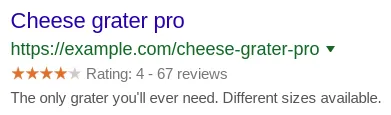
Making Review Rich Results more helpful
Monday, September 16, 2019 Search results that are enhanced by review rich results can be extremely …
#TanyaTentangSearch (Structured Data)
2019-09-01 We published a blog post in Indonesian, however it's not translated to English. Start rea…