 EN
ENInstagram Story Features Explained: How to Use Them
Since launching in 2016, Instagram Stories have become a staple of the social media platform, giving both users and brands endless ways to share moments and updates with their followers. The sticker icon alone adds 21 interactive features for your Instagram Story.
Whether you want to use a poll sticker to ask your audience what they want to see next, give behind-the-scenes peeks of a product launch, or share multiple photos in a row, Stories give brands many opportunities to engage with their audience in an authentic way.
This guide will cover what Instagram Stories are, their features, and how to use them in your content.
What is an Instagram Story?
Instagram Stories are designed to be temporary vertical photos or videos that disappear after 24 hours from your profile. They appear in the Stories bar at the top of your home feed and are indicated by a ring around someone’s profile picture. Stories differ from other posting formats, like Posts and Reels, which remain on your profile as long as you want them to.
Posting Stories regularly can help keep your audience engaged and your business top of mind for customers. According to the 2026 Metricool Instagram Study, small accounts that post 7 to 14 times per week see peak numbers of interactions.
How to post an Instagram Story
- Tap the “+” in the upper left-hand corner
- Find and tap “Story”
- Tap the camera or upload content
- Add creative elements
- Share to your Story or Close Friends
Before creating Stories, brands and businesses need to make sure they have a business account. This lets you access features that help you grow your account and promote products.
You can create Instagram Stories by capturing content within the Instagram app, or you can upload photos or videos you’ve already shot. Here are the basics for how to post an Instagram Story:
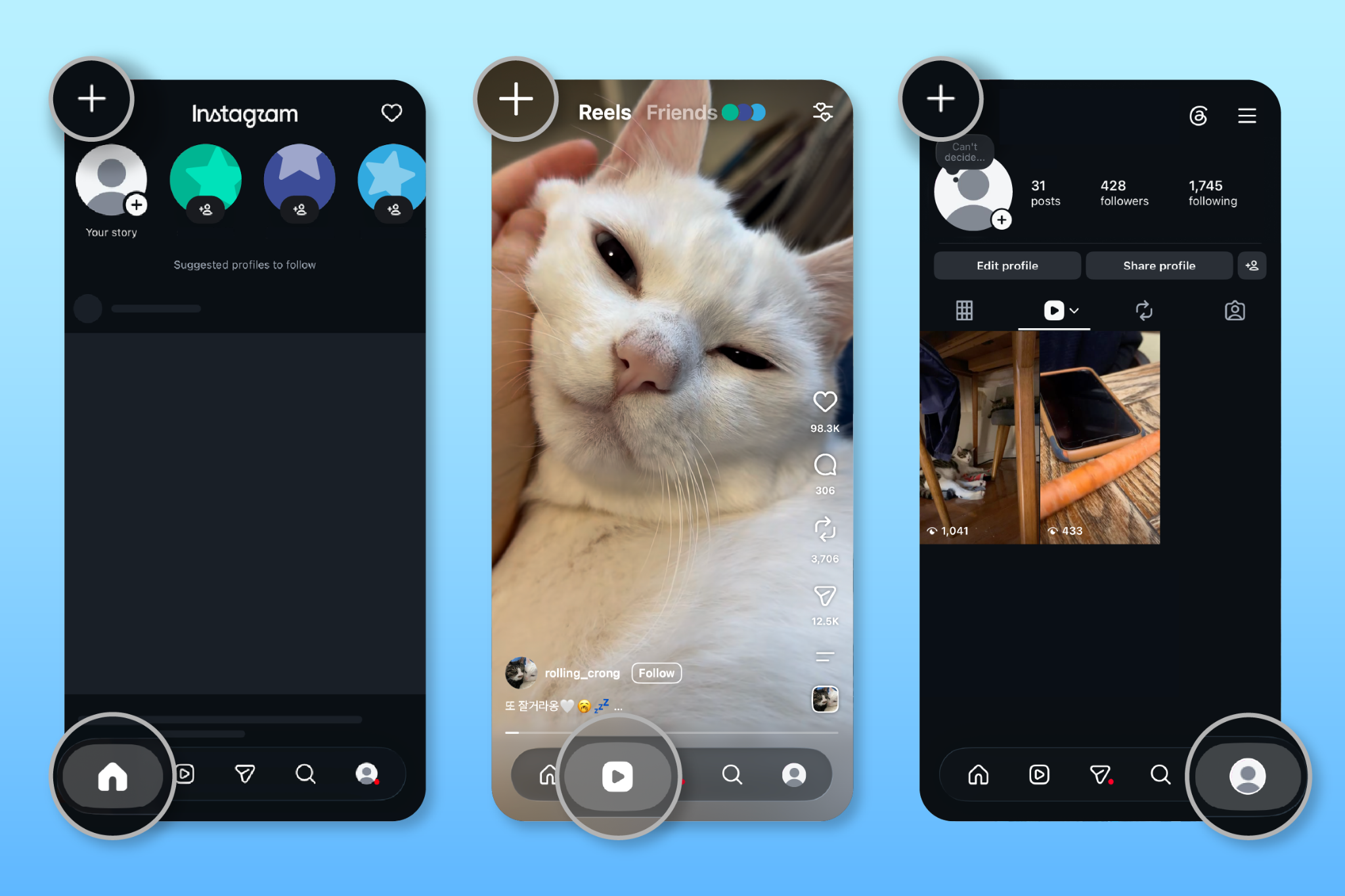
1. Tap the “+” in the upper left-hand corner
You can do this either from your homepage, Reels, or profile page.
 Source: Instagram
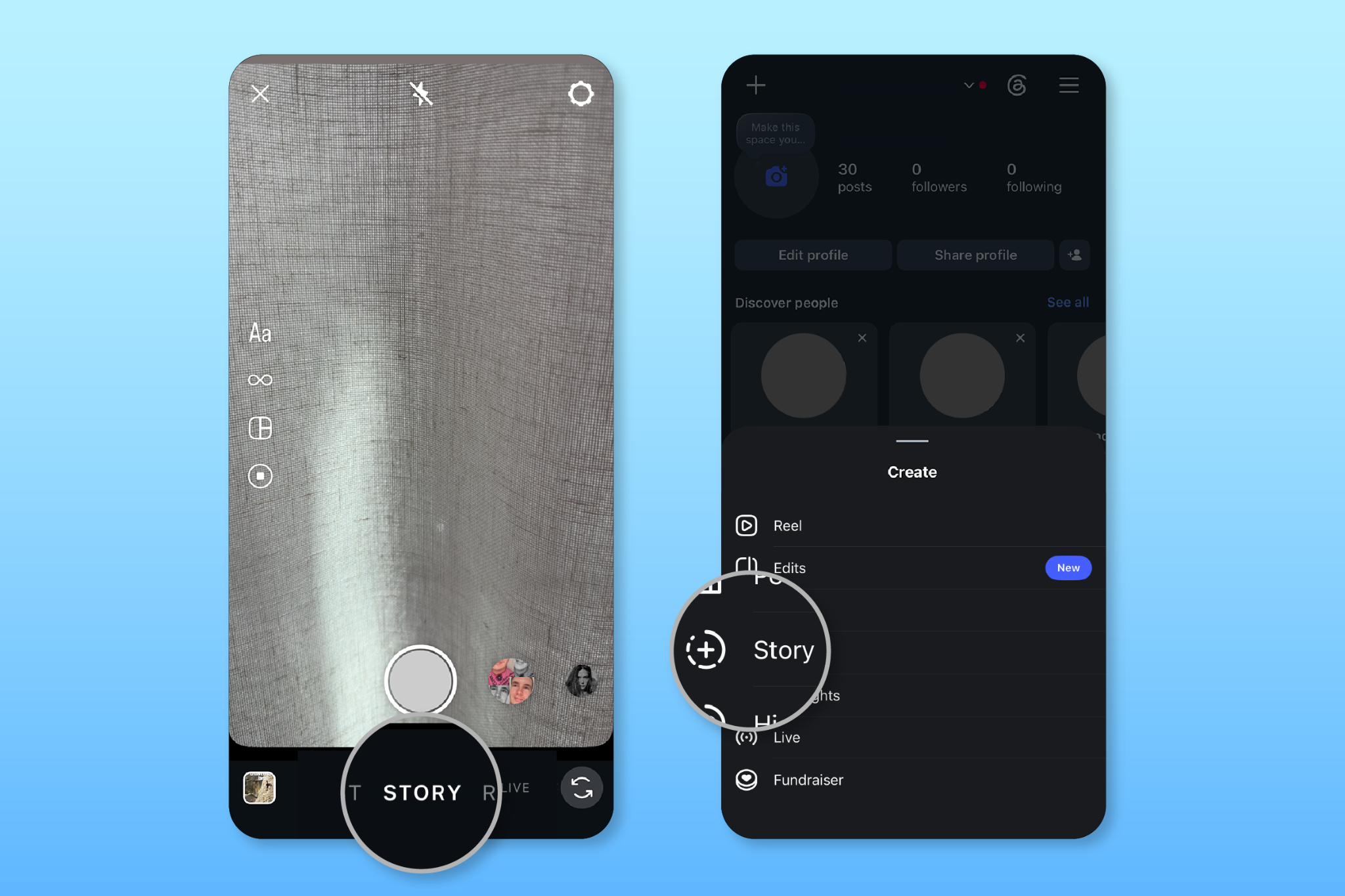
 2. Find and tap "Story"
You’ll see options like Post, Story, Reel. Find the options at the bottom of the screen or on the left-hand side.
 Source: Instagram
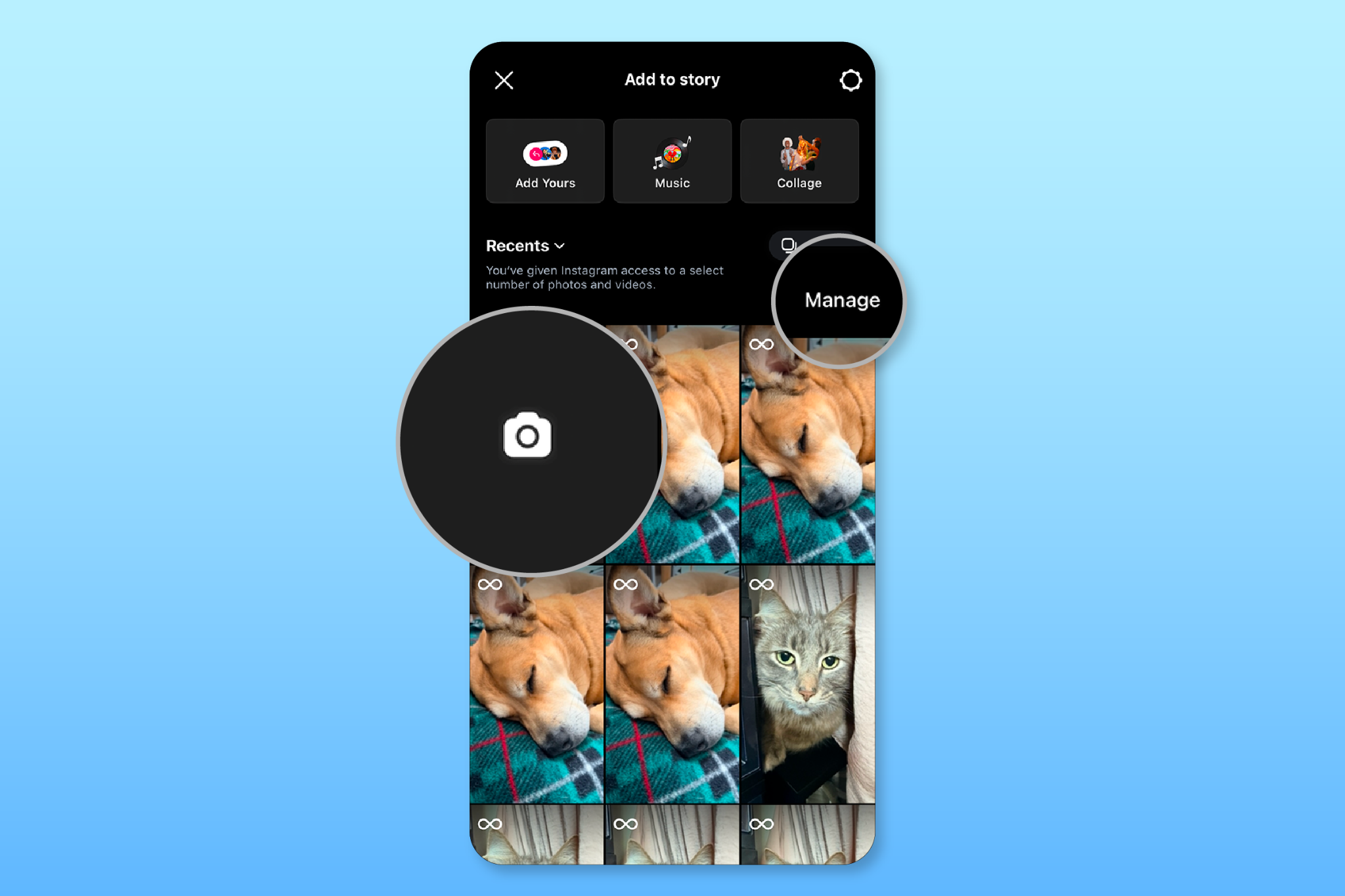
 3. Tap the camera or upload content
On the “Add to story” screen, you can either shoot content directly in Stories by tapping the camera icon, or select content from your camera roll to upload by selecting “Manage.”
 Source: Instagram
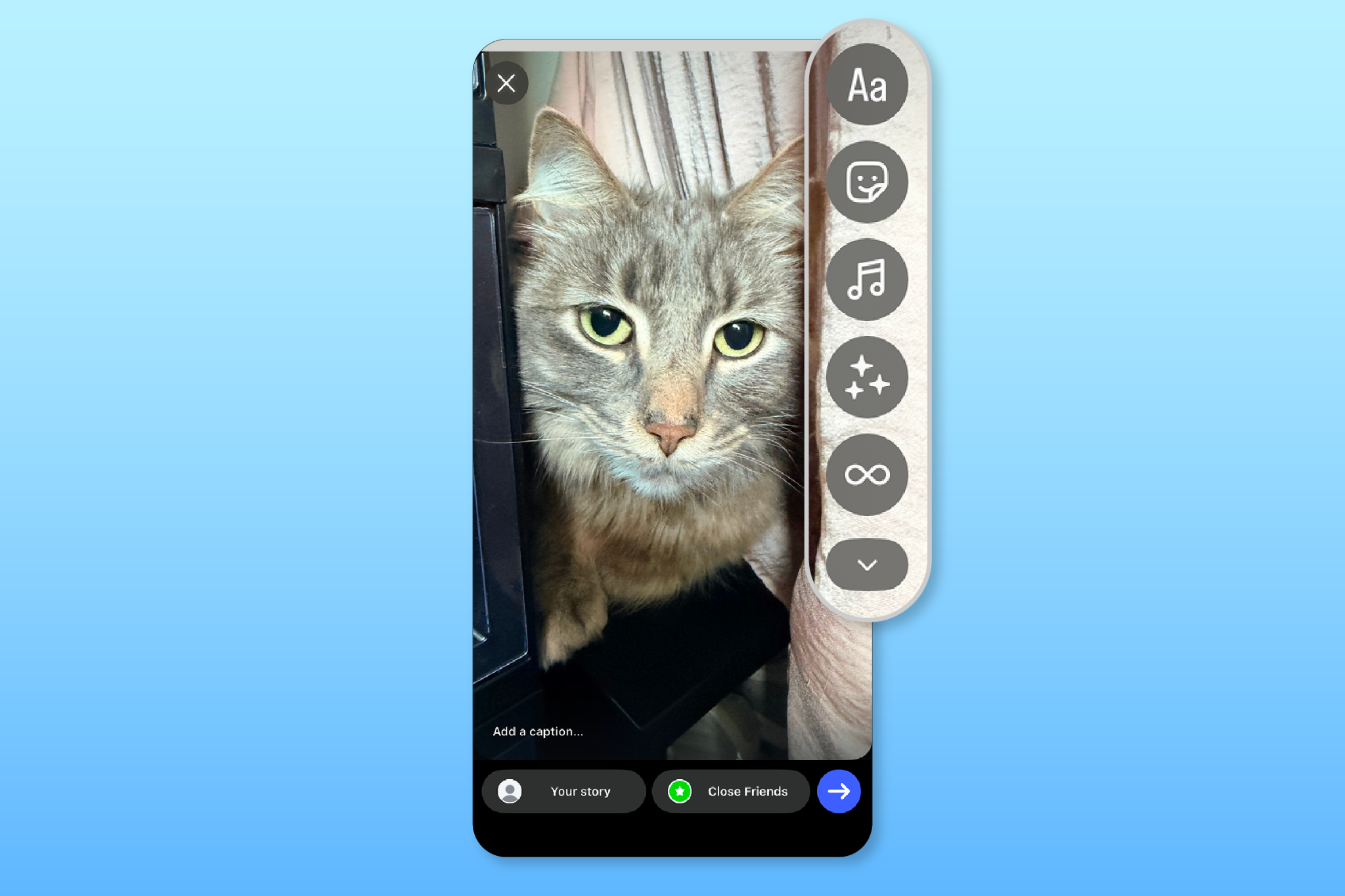
 4. Add creative elements
You can now add text, Instagram Story stickers, and more creative elements to your photo or video. The rest of the guide will go into more detail on these creative features.
 Source: Instagram
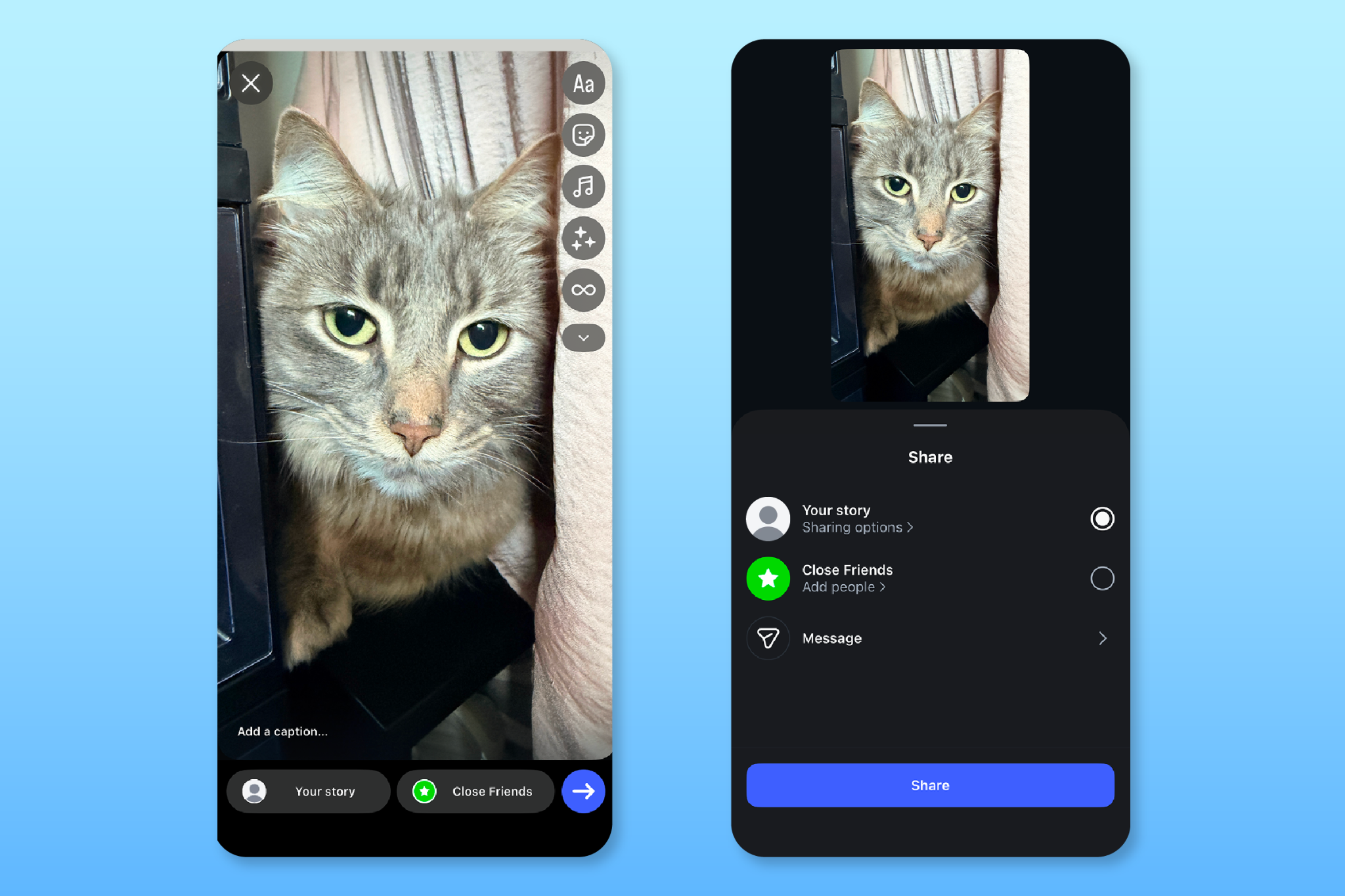
 5. Share to your Story or Close Friends
The final step to share your Story is to select either Your Story or Close Friends. Close Friends are people you select to be on a list, and they will be the only ones who see a post, Reel, or Story.
 Source: Instagram
 Start selling your products on Instagram
Shopify comes with powerful tools that help you list, promote and sell products on Instagram. Create product collections, showcase your brand and products, and make sales on Instagram from one place.
Start selling on InstagramInstagram Story stickers
- Location sticker
- Mention sticker
- Music sticker
- GIF sticker
- Interactive sticker
- Notification sticker
- Shopping sticker
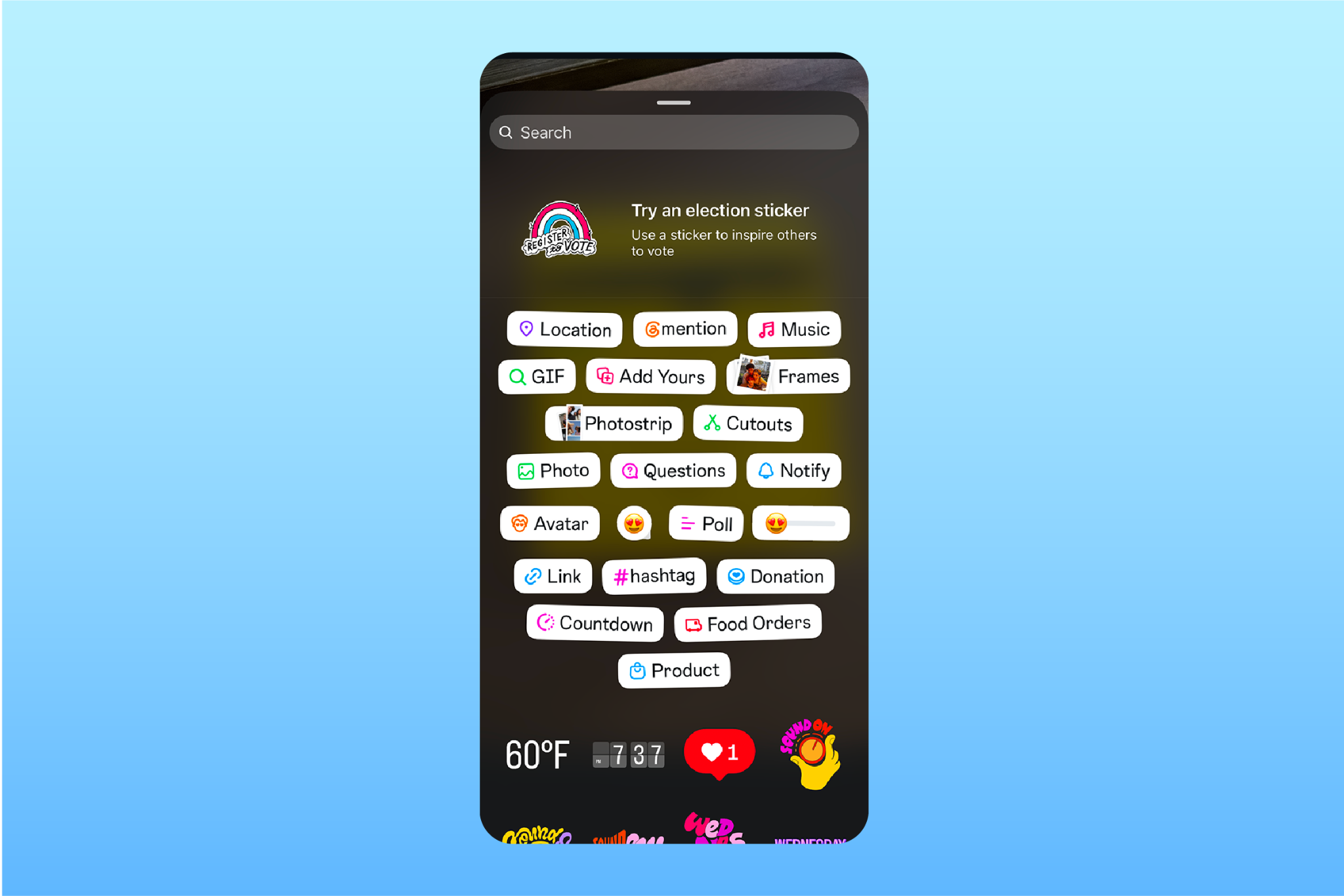
Interactive stickers provide a simple way to make even a single Story frame more engaging. Here’s what they are and how you can use them to add interactive elements to your own Story:
Location sticker
Use a location sticker to geotag a pop-up, your business location, or anywhere else your audience needs to know about.
 Source: Instagram
 Mention sticker
Tag the account you want to mention by typing in the username. Viewers can click the name to view their profile. This can be helpful for collaboration posts if you’re working with a creator.
Music sticker
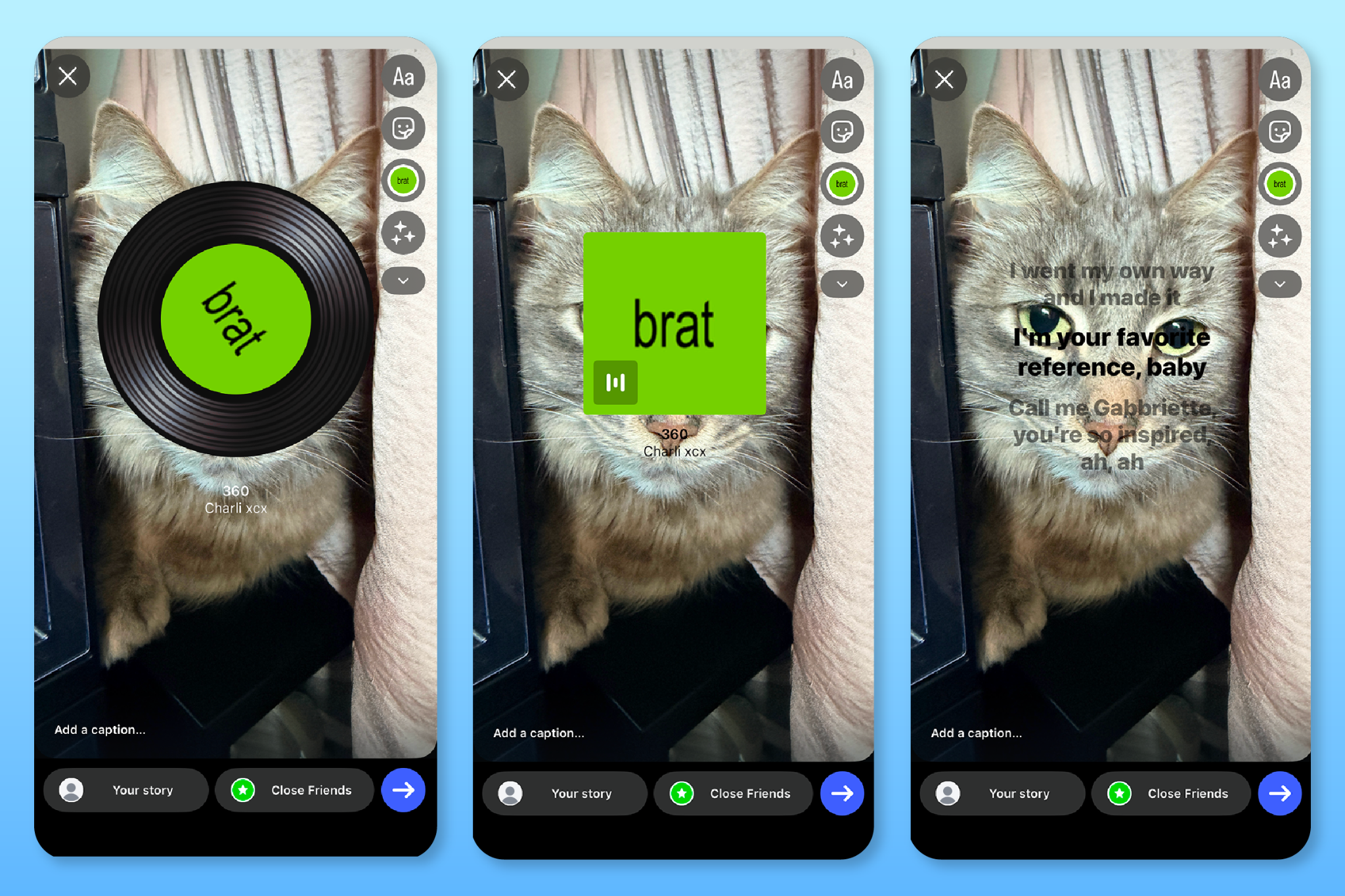
Meta’s Sound collection has thousands of songs that are royalty-free for businesses to use. When you select songs, you can select what part of the song you want and tap through different designs that range from showing the album cover to displaying song lyrics.
 Source: Instagram
 GIF sticker
Tap the GIF sticker and search through GIPHY to add a dynamic sticker to your Story. You can use these to include flair or use something like an animated arrow to bring attention to a message like a sale.
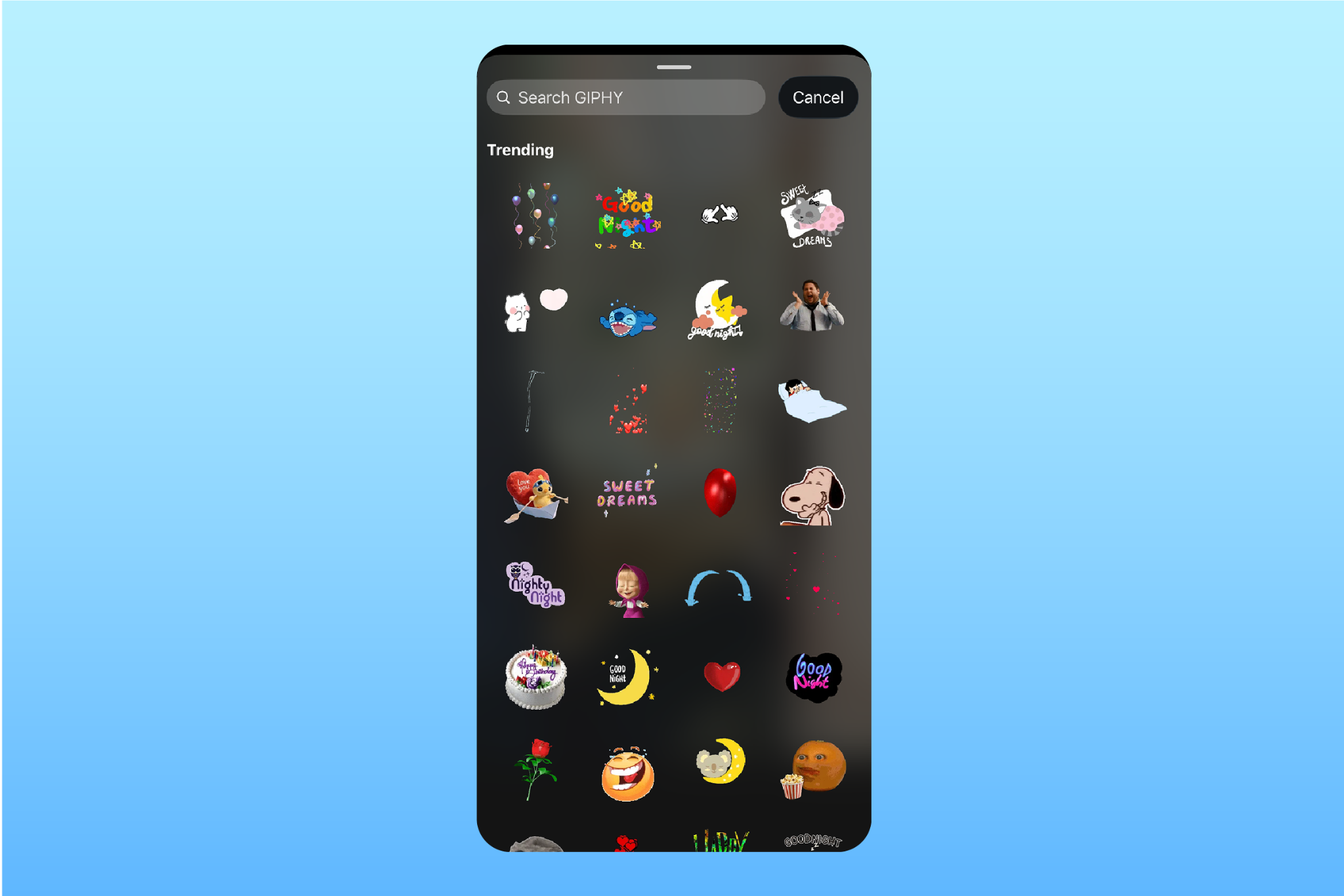 Source: Instagram
 Interactive sticker
These stickers encourage your audience to interact with your content by answering questions and participating in polls:
-
Questions. Write a question, and your audience can respond to it. You can ask viewers what they’d want to see from your brand or allow them to submit questions for you to answer.
-
Add yours. You write a prompt for viewers to share their own photos or videos about any topic.
-
Poll sticker or emoji slider. Write a unique poll and ask your audience to vote by either selecting an answer or sliding the emoji. For example, a bakery might ask their audience to choose between three possible flavors of cookies.
-
Quiz. A quiz sticker allows you to create a multiple-choice quiz where you can set the correct answer. Your audience interacts by tapping on one of your options and sees if they got it right.
Here’s an example of a poll sticker from Kodiak Cakes, asking their audience if they’ve tried one of their new products.
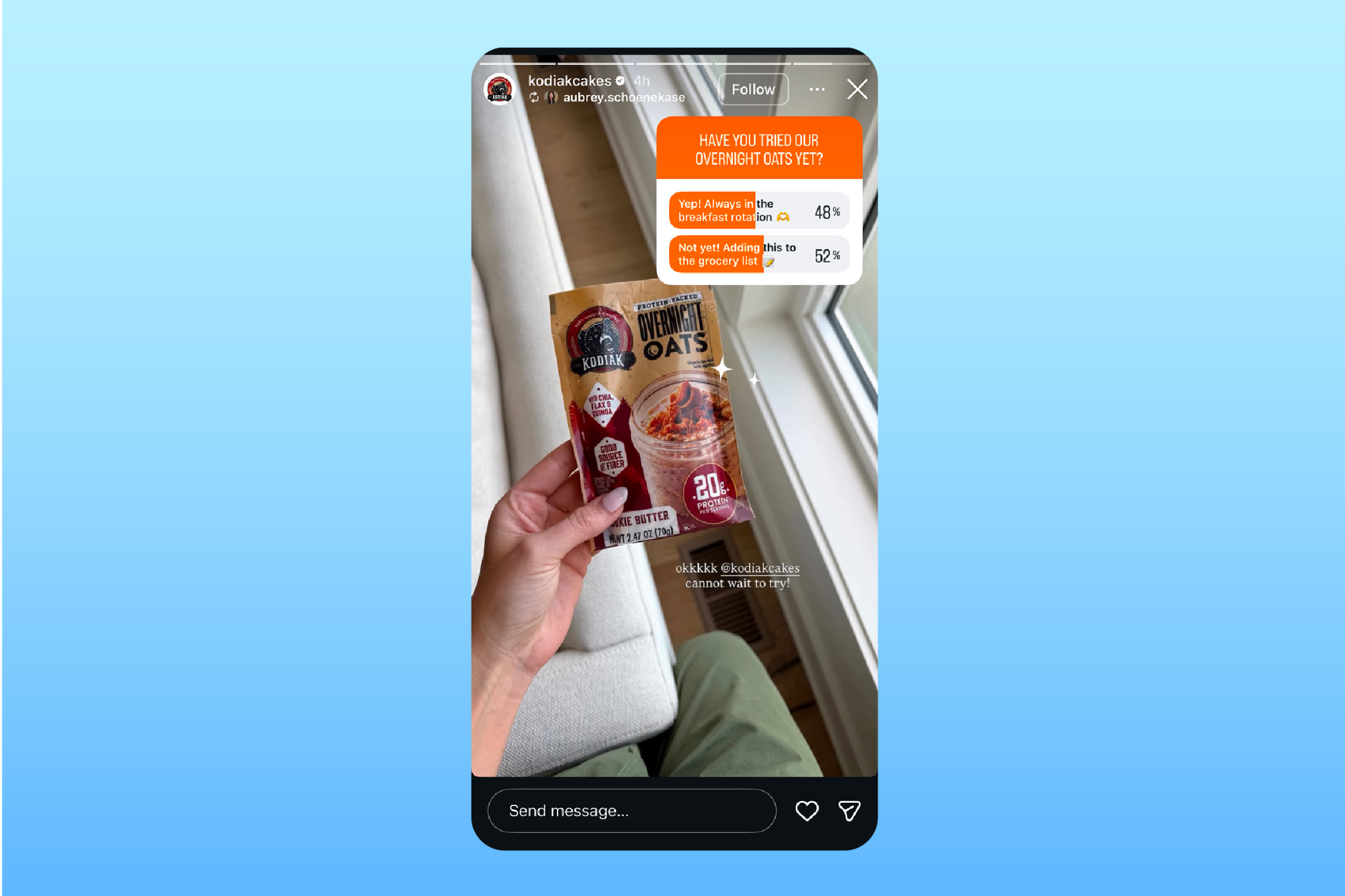 Source: Instagram
 Notification sticker
Use these stickers to help your audience set important reminders:
-
Notify. This sticker allows your followers to select which content they receive notifications for posts, Stories, or Reels, which can be useful if you’re releasing content in a series.
-
Countdown. This lets you set a date and time, and followers can tap it to get a reminder when it hits zero. The countdown sticker could be used strategically for events like product launches or big announcements.
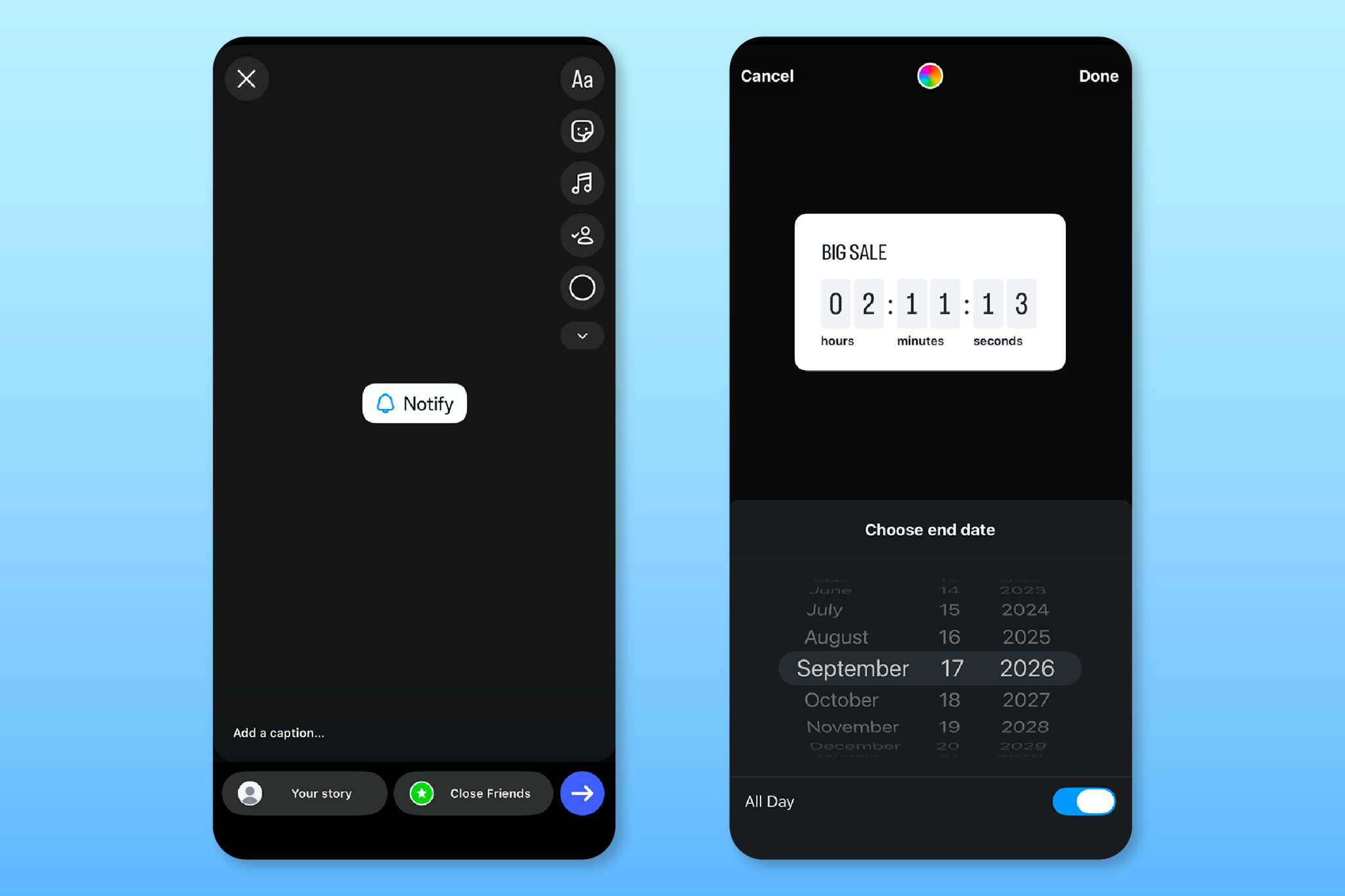 Source: Instagram
 Shopping sticker
Use these stickers to help followers purchase items, order food, or donate to your nonprofit:
-
Links. Link stickers are used to drive traffic to a web page, whether that’s a product page, a download page, or a homepage.
-
Food orders. Restaurants can set up food orders with this sticker. Through delivery services like Caviar and Uber Eats, your audience can order delivery or pick up.
-
Products. Select the product you want to promote. Clicking on a tagged product takes customers directly to checkout on a merchant’s Shopify store.
-
Donations. Add a donation sticker to help raise money for a registered nonprofit. Viewers tap to donate directly through Instagram. You can use this to run a campaign where you match donations while bringing awareness to an issue.
Here, The Farmer’s Dog is using a shopping link sticker in their Instagram story to drive their audience to one of their dog foods.
 Source: Farmers Dog Instagram
 Reach customers everywhere they are with Shopify
Shopify comes with powerful tools that help you promote and sell products on Facebook, Instagram, TikTok, Google, and YouTube from one back office. Make sales on multiple channels and manage everything from Shopify.
Explore Shopify’s sales channelsOther Instagram Story features
- Photo features
- Creative features
- Sharing features
- Instagram Story Highlights
These features can help you create engaging content in different ways:
Photo features
These features allow you to create layered Stories with multiple images per frame:
-
Photo. Add a photo to your story, then tap to make edits like changing the shape or size.
-
Layout. From the creation screen, select “Layout” to upload multiple photos and change their layout, like a grid, split screen, or thirds.
-
Frames. Adding a frame makes the photo appear blurry to viewers until they shake their phone to reveal it. There’s also a space for a caption below the photo, in the style of a Polaroid.
-
Photostrip. You can combine multiple photos to create a photo-booth style strip with this feature. This could be useful to show multiple products in a row.
-
Cutouts. Cutouts allow you to make stickers out of your own photos. You could, for example, create cutouts from product photos and place them on a solid color background.
-
Collage. From the “Add to Story” screen, collage allows you to upload multiple photos and automatically cut them out to animate one on top of the other, like a collage.
Tattoo studio Beauty in Ink, for example, used the layout feature to create a grid photo displaying their clients and their tattoos.
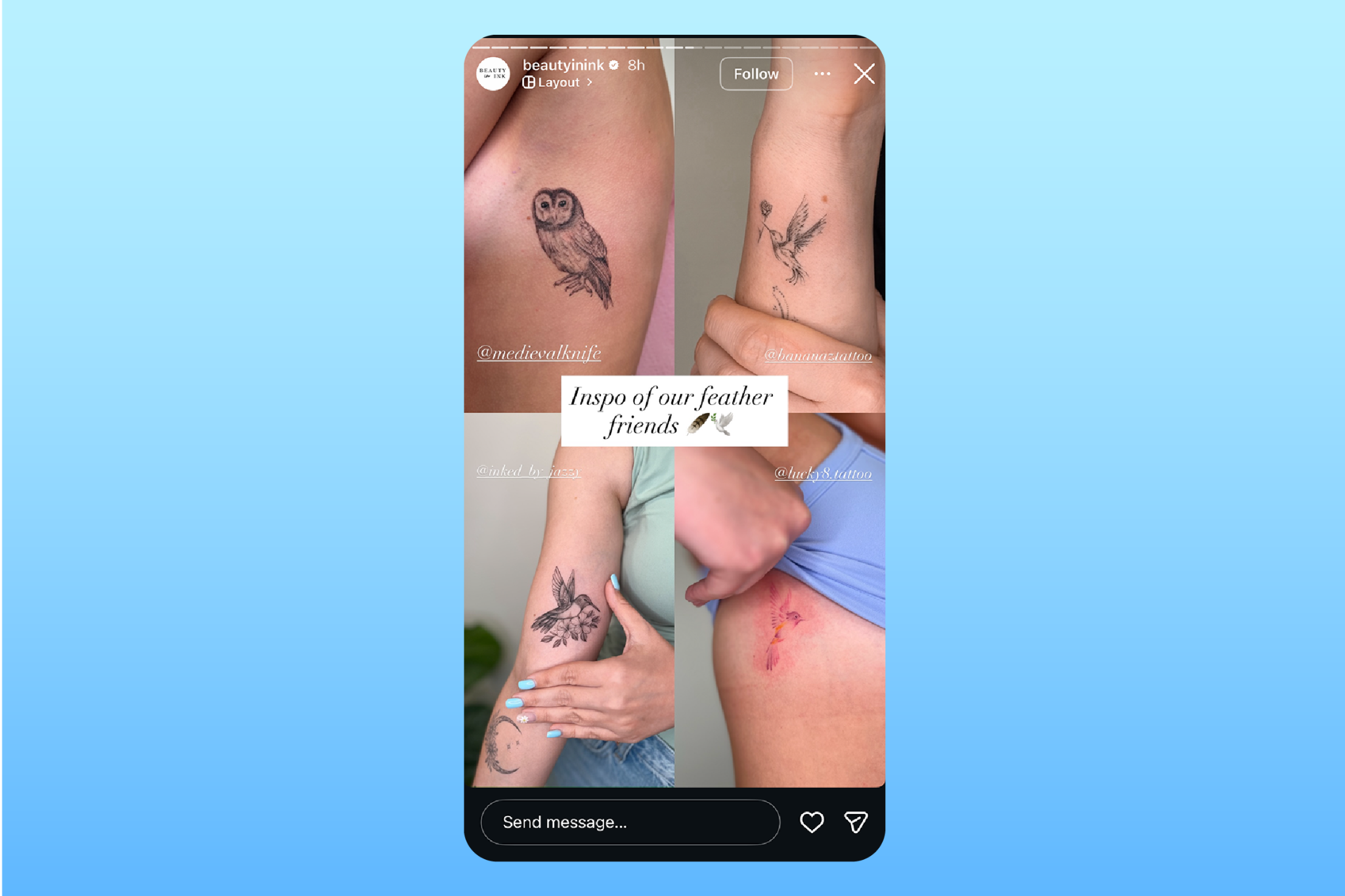 Source: Beauty in Ink Instagram
 Creative features
Add novelty to your content with these features:
-
Boomerang. If you have Live Photos on, you can turn them into Boomerangs (a looping video) on Stories. You’ll see which photos can be turned into Boomerangs from your camera roll because they’ll have a ∞ in the upper right-hand corner. You can also shoot a Boomerang in the app.
-
Text. Instagram gives you endless options for how to customize text. Choose from different fonts, colors, animations, and restyle your text with Meta AI with either preset styles or by prompting your own request.
-
Draw. Bring attention to a specific part of your Story by drawing on it with a selection of colors. Simply use your finger to draw.
-
Captions. Instagram Stories now allow captions, much like posts. Add one in the lower left-hand corner of your Story.
-
Effects. Use Meta AI to restyle your photos. Similar to text effects, you can choose from preset effects or prompt it to add to your photo however you want.
Sharing features
You can share posts, Reels, and other accounts’ Stories within your Story. This can be a way to bring attention to new posts from your own feed, or to celebrate fans who have tagged your product or business—a useful way to encourage user-generated content (UGC).
Strava, for example, gives props to its fans by resharing their stories on their brand page. You can tell they’re sharing it from a fan by the small repost symbol below their profile name and next to the profile name they’re sharing.
 Source: Strava Instagram
 Instagram Story Highlights
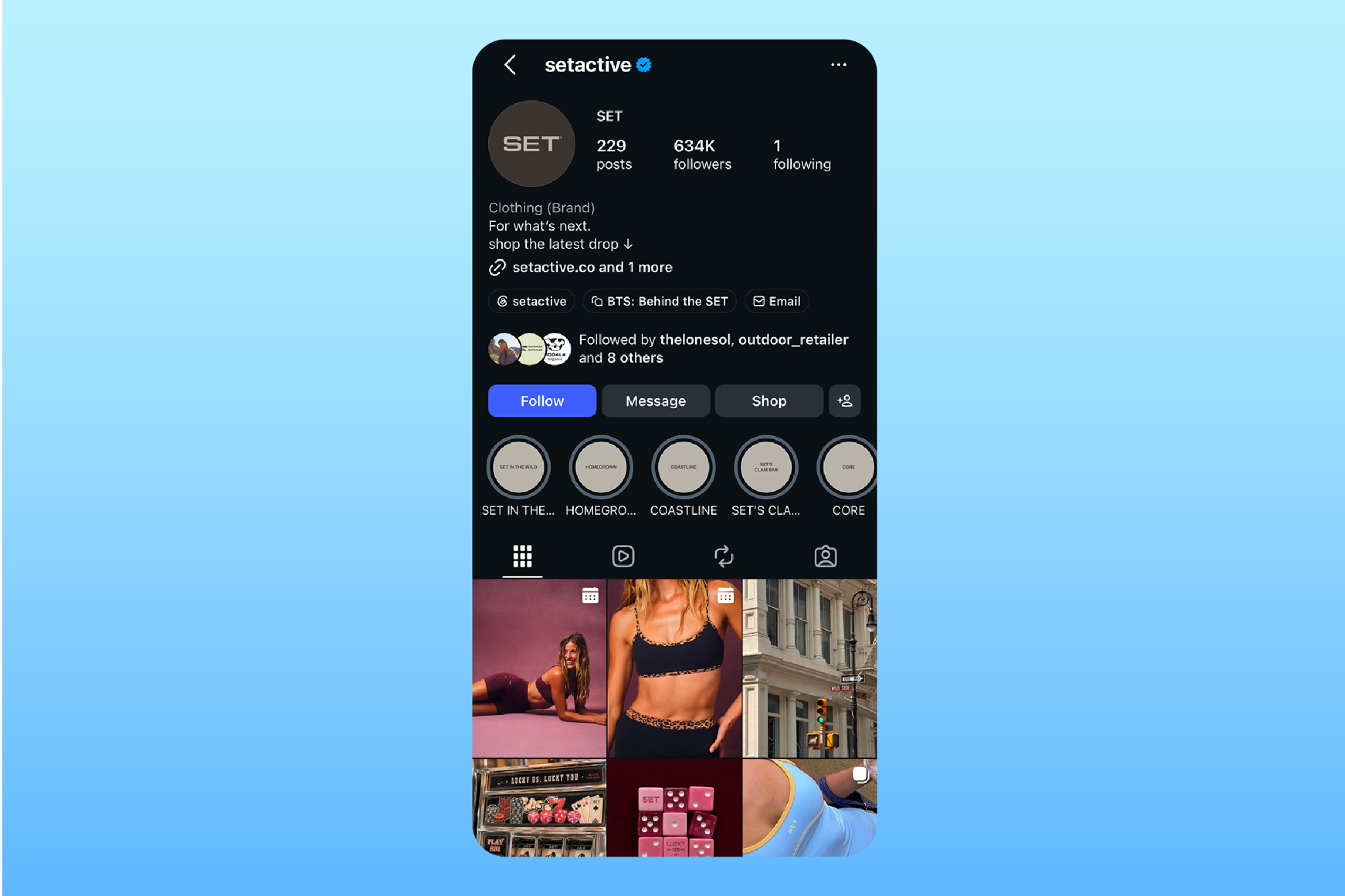
While Stories disappear after 24 hours, they can become permanent if you turn them into Highlights. Story Highlights remain above your grid, and viewers can scroll left to right to see more of them.
For example, Set Active has created a series of Story Highlights of collections on its profile page based around themes, collections, and events.
 Source: Set Active Instagram
 Instagram Story FAQ
What are 10 unique features of Instagram?
You can connect your Shopify store through the Facebook and Instagram by Meta sales channel, which syncs your product catalog to Instagram. You can then tag products in your Stories so viewers can tap through and check out on your store, and use the link sticker for anything that isn’t a single product, like a sale landing page. Build anticipation with countdown stickers before launches and restocks, use polls and quizzes to learn what your audience wants, and reshare customer posts that tag your products.
How do you use Instagram Stories for ecommerce?
Facebook and Instagram by Meta sales channel, which syncs your product catalog to Instagram. You can then tag products in your Stories so viewers can tap through and check out on your store, and use the link sticker for anything that isn’t a single product, like a sale landing page. Build anticipation with countdown stickers before launches and restocks, use polls and quizzes to learn what your audience wants, and reshare customer posts that tag your products.
What are the newest features on Instagram?
The most recent additions to Stories, according to the Instagram blog, are Meta AI tools that live directly in the Story editor. You can restyle a photo or video with preset effects or a text prompt, add, remove, or change elements in an image, and apply AI styles to your text.
Source: Original website ·Read original
Related Learning
13 Trending Sounds on Instagram in October 2026 (+ How to Use Them)
Choosing the right trending audio to accompany your latest Instagram post is an art, not a science. …
How the Instagram Algorithm Works: Your Up-to-Date 2026 Guide
The good news: Instagram has transparently shared a ton about the magical, majestic Instagram algori…
Best Time to Post on Instagram in 2026: Data from 9.6 Million Posts
The best times to post on Instagram in 2026 are Thursday at 9 a.m., Wednesday at 12 p.m., and Wednes…